Variation Templates
If many of your products share the same choices — the same 68 frame sizes, the same paint colors, the same fabric list — you shouldn't have to build that list again for every product. A Variation Template is a variation you build once and apply everywhere it's needed. Change the template, and one click updates every product that uses it — and, if you sell on Etsy, pushes those changes to your Etsy listings too.
Templates are part of the upgraded variations editor. Combined with per-variation vary settings, they're the fastest way to run a store with complex variations.
The Variation Templates dashboard
Go to Dashboard → Variations. Each template appears as a card, with every product using it listed underneath.
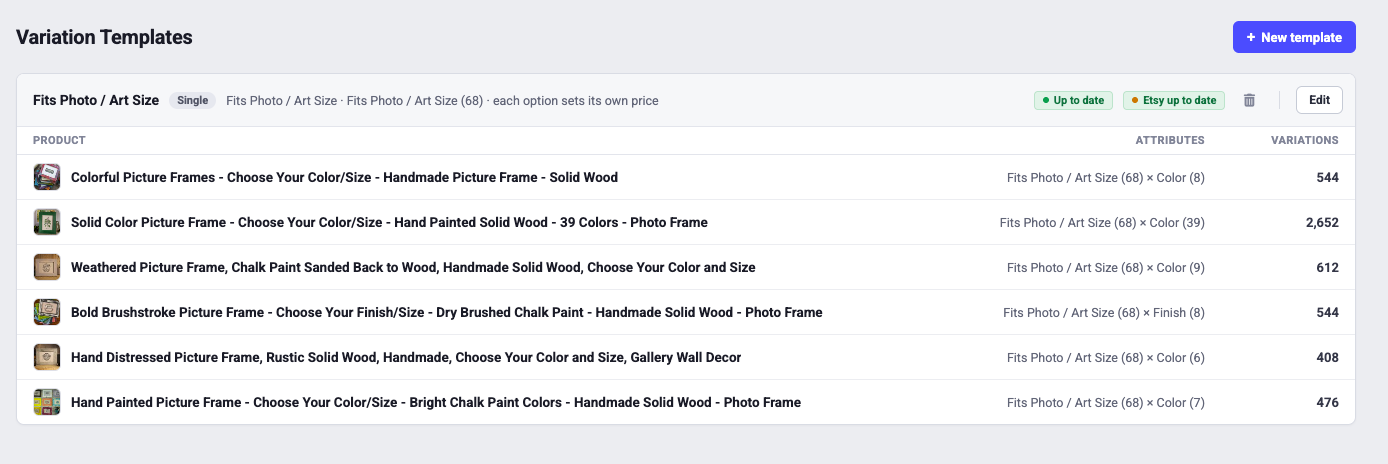
Reading a card:
- The template name and a short summary — the option count, and how it prices ("each option sets its own price" or "each option adjusts the base price").
- The product list — each product using the template, with its full attribute mix (e.g. Fits Photo / Art Size (68) × Color (8)) and how many variation combinations that produces.
- New template creates one from scratch; Edit opens the template editor.
Two kinds of template — Single and Multi
The badge on each card tells you which kind it is, and they work differently:
Single — one shared variation
A Single template is one variation — one list of options like "Fits Photo / Art Size (68)" — shared across products. Each product combines it with whatever else that product needs: one product pairs it with its own Color (8), another with Color (39), another with Finish (8). The shared part stays identical everywhere; the rest is per-product.
Sharing one variation across products this way is uncommon among store builders — and it's exactly what a catalog full of frames, prints, or apparel needs: the size list is the same everywhere, the colors are not.
Multi — a bundle of variations applied as one
A Multi template bundles several variations into one package — say Size (4) × Material (2) — and applies them to a product together. The card shows the member math and the combination count. A product using a Multi template gets its whole variation setup from that one template: apply it, and the product's variations are defined by the bundle.
When to use which: use a Single template when products share one list but differ elsewhere. Use a Multi template when a family of products should have the identical complete setup — every variation, managed from one place.
You'll also see a Per-product card on the dashboard: it gathers products whose options were built directly on the product and aren't shared from any template. They get the same Up to date / Update Products treatment, but you edit their options on the product itself.
The badges tell you what's in sync
- Up to date (green) — every product using this template matches it. Nothing to do.
- Update Products (amber button) — you've changed the template since some products were last built from it. Click to rebuild their variations from the template.
- Etsy up to date (green) — every Etsy-linked product's changes have been pushed to its listing.
- Update Etsy (amber button) — linked listings have changes that haven't been pushed. Etsy is always pushed from what IndieMade has, so if products are also out of date, the button waits until you've clicked Update Products first.
That ordering is the whole workflow: edit the template → Update Products → Update Etsy. Three clicks to change 68 sizes across your entire catalog and every Etsy listing.
The template editor
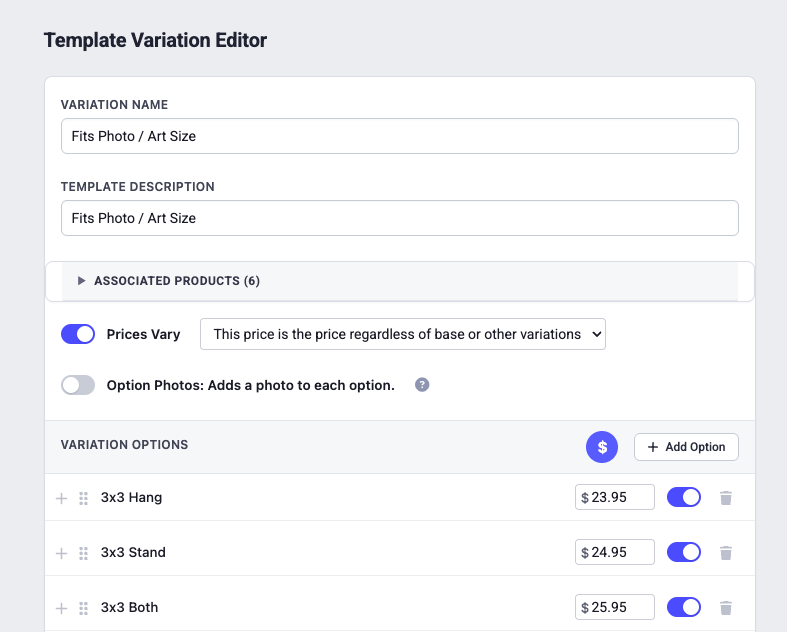
- Name and description — the name customers see ("Fits Photo / Art Size"), and a note to yourself.
- Associated products — expand to see everything this template is applied to before you change it.
- Prices Vary — with the same two pricing modes as the product editor: each option sets its own price, or adjusts the base price. Set the price beside each option.
- Option Photos — attach a photo to each option.
- Options — add, reorder by dragging, switch off, or delete. The toggle beside each option controls whether it's offered without removing it.
Bulk price tools — reprice 68 options at once
Nobody wants to retype 68 prices. The $ button in the Variation Options bar opens the bulk pricing tools, with four ways to set every option's price in one pass:
- Set All to Same Price — every option gets the same amount.
- Progressive Pricing — each option costs more than the previous one: give a starting price and a per-step amount, and the ladder fills itself. Perfect for size runs where each size up adds the same increment.
- Modify by Amount — raise or lower every current price by a fixed dollar amount. A supplier cost increase becomes one entry.
- Modify by Percentage — raise or lower every current price by a percentage. A 10% price rise across the whole size list is two clicks.
How prices combine across variations
A product can have more than one price-varying variation — a template plus its own, or several templates. Each combination's price is worked out with two simple rules:
- An "own price" wins outright. If any selected option comes from a variation set to each option sets its own price, that price is the final price — the base price and every other adjustment are ignored. (Options built directly on a product always price this way.)
- Otherwise, adjustments add up. All selected options from adjusts the base price variations are summed onto the product's base price.
Two examples:
- Size template in own-price mode: 8×10 is $34.95. The customer also picks a Color from a +$2 adjust-mode variation — the price is $34.95. The own price wins; the +$2 is ignored.
- Base price $20. Size in adjust mode (+$4 for Large) and Pockets in adjust mode (+$3) — the price is $27. Adjustments stack.
Rule of thumb: don't mix an own-price variation with other price-varying variations on the same product unless you intend the own price to be the whole answer. Own-price mode is for "the size determines the price, full stop." Adjust mode is for stackable extras.
Applying a template to a product
On the product's edit form, in the Variations section, click Add from template and pick one. The product gets the template's options, prices, and photos immediately — and shows up on the template's card in the dashboard from then on.
Tips
- Before editing a template, glance at its associated products — your change lands on all of them when you click Update Products.
- Big templates multiply: a 68-option size template crossed with an 8-color variation is 544 combinations per product. That's the point — but it's also why Update Products does the heavy lifting for you rather than making you touch each product.
- If you sell on Etsy, let the badges drive: when a card shows all green, IndieMade and Etsy agree.
Related: Using the Upgraded Variations Editor · Why We Upgraded Variations