The Category Cards Section
Your categories as clickable cards, in one of your store's own category displays. Names and photos stay current on their own.
Best for: Showing visitors what you make, on the homepage or a landing page.

On a phone
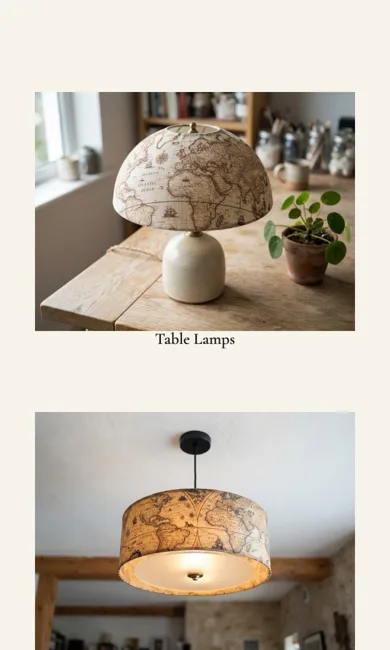
Adding it
Turn on the Editor, click Add new section here, and choose Category Cards under Section Builder. It starts with sample words and pictures; replace them with your own. Click Modify on the section's toolbar to open its drawer. The steps, with pictures, are in Building Pages with the Section Builder.
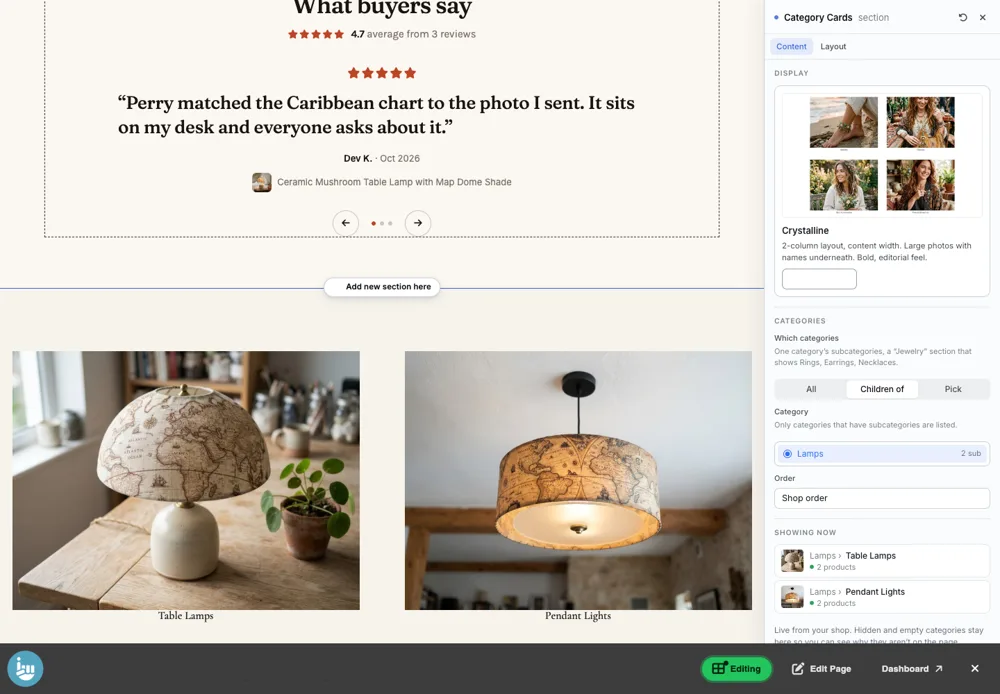
The Content tab
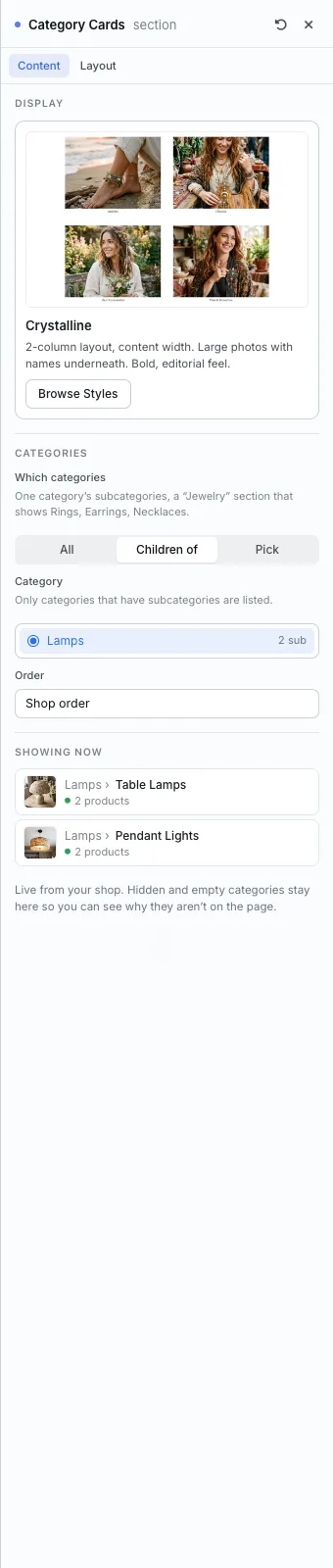
- Display and Browse Styles: the look of the cards.
- Which categories: All (every top-level category), Children of (one category's subcategories, such as Rings, Earrings and Necklaces under Jewelry), or Pick.
- Order: Shop order or A to Z.
- Showing now: what is on the page right now, with each category's product count. Hidden and empty categories stay in this list so you can see why they are not on the page.
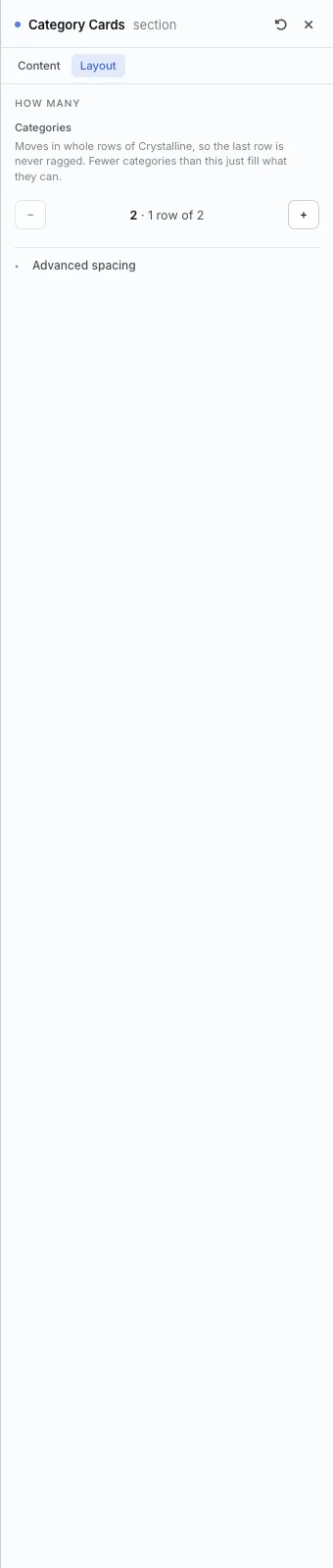
The Layout tab
- Categories: how many cards. It moves in whole rows of the display.
The settings every section shares are explained in Section Colors, Fonts and Backgrounds.
Category Cards takes its look from your store's display, so it has only the Content and Layout tabs.
Tips
- A category without its own photo borrows its first product's photo. Add a category photo to choose it yourself.
All Section Builder sections · Questions? Email support@indiemade.com.