The Slideshow Section
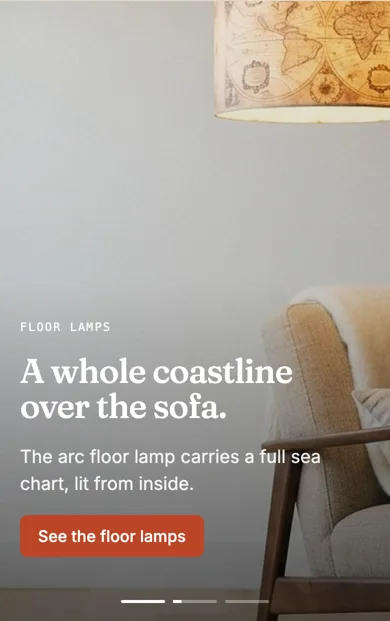
Full-width photos with the words laid over them. Each slide chooses where its words sit, whether they read light or dark, and how much the photo darkens behind them.
Best for: A big, photo-led opening for a homepage.

On a phone
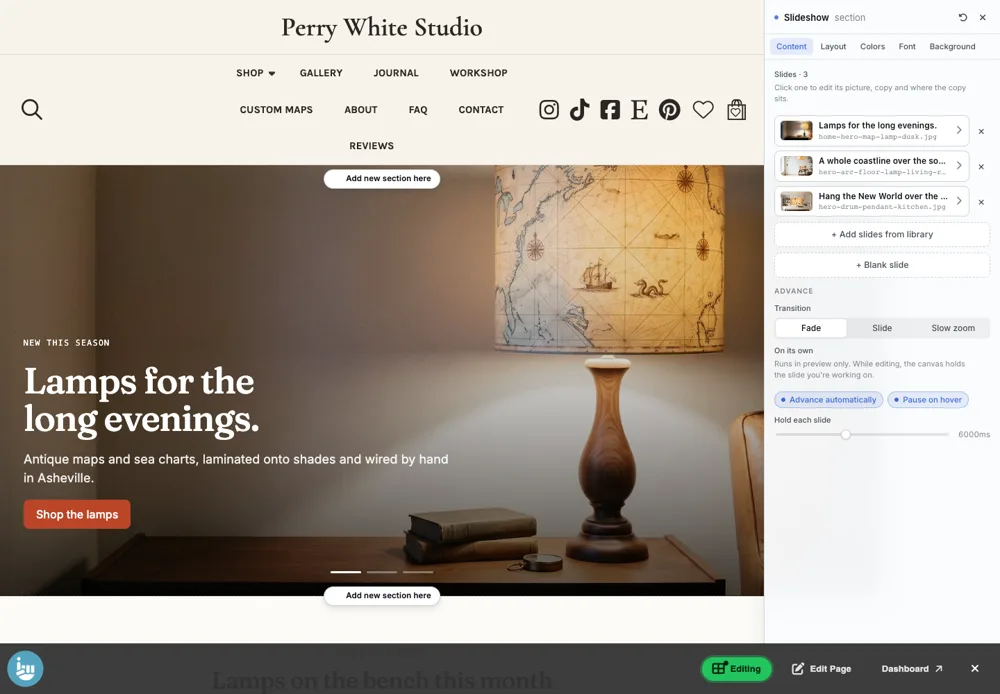
Adding it
Turn on the Editor, click Add new section here, and choose Slideshow under Section Builder. It starts with sample words and pictures; replace them with your own. Click Modify on the section's toolbar to open its drawer. The steps, with pictures, are in Building Pages with the Section Builder.
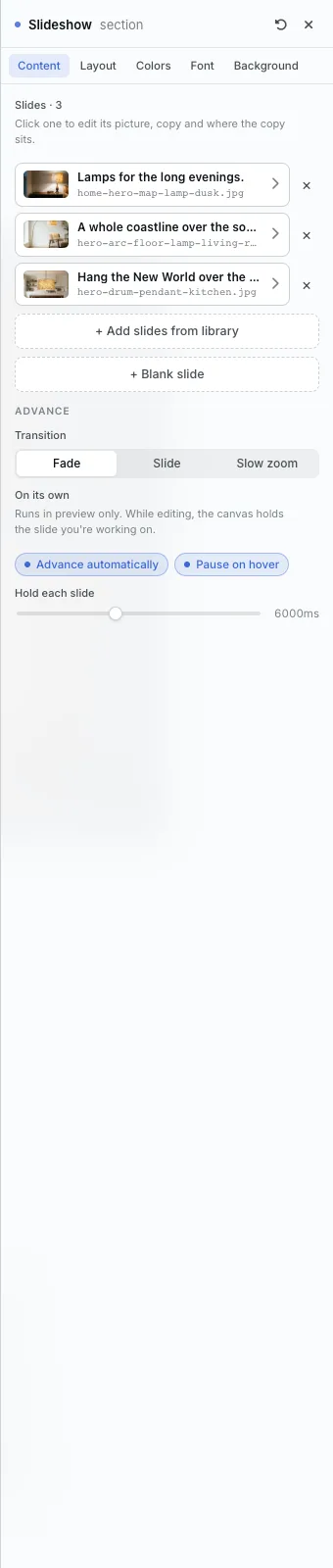
The Content tab
- Slides: click one to edit its picture, words and where the words sit. + Add slides from library adds several photos at once; + Blank slide adds one to fill in.
- Transition: Fade, Slide or Slow zoom.
- Advance automatically, Pause on hover and Hold each slide: whether it moves on by itself, stops while a visitor points at it, and how long each slide stays.
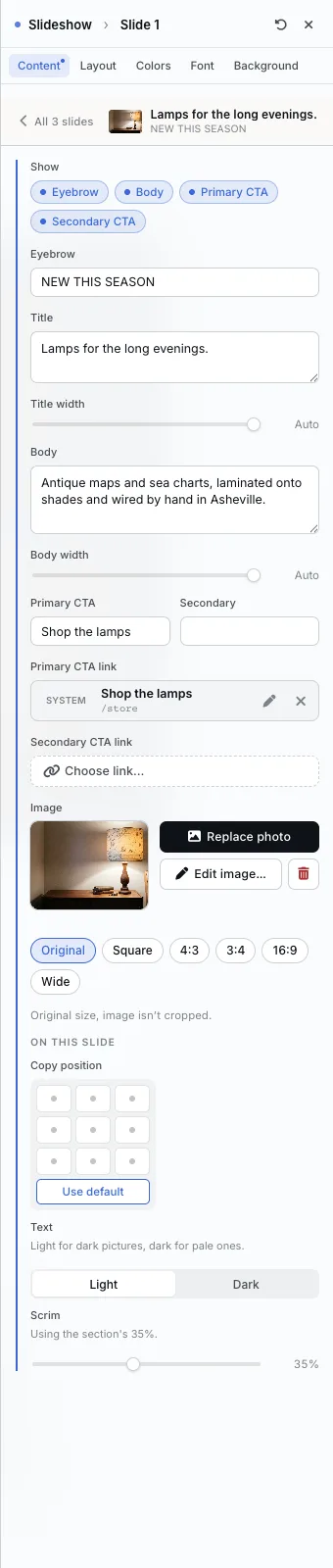
Editing one slide
Click a slide to change its photo, eyebrow, headline, text and buttons, and where its words sit on the picture.
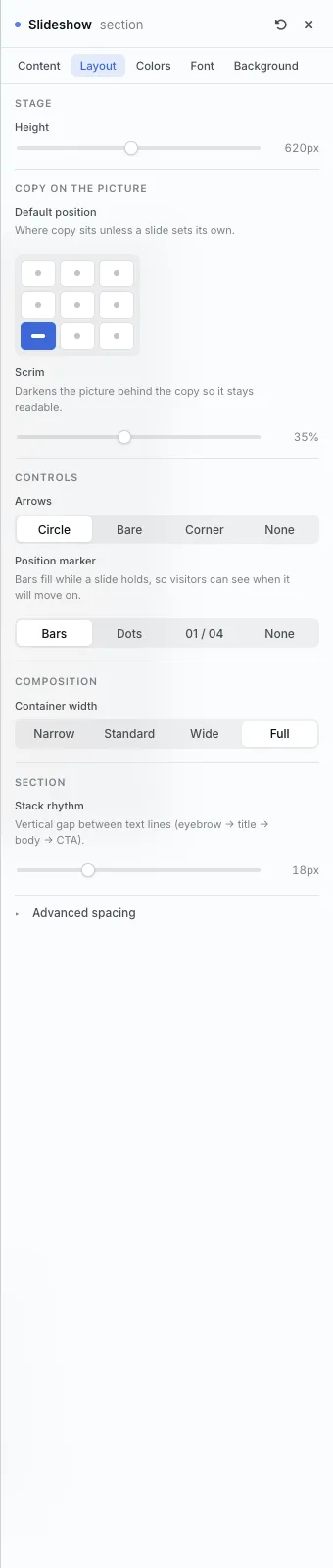
The Layout tab
- Height: how tall the slideshow is.
- Default position: where the words sit unless a slide sets its own.
- Scrim: darkens the photo behind the words so they stay readable.
- Arrows: Circle, Bare, Corner or None.
- Position marker: Bars (they fill while a slide holds, so visitors see when it will move), Dots, a counter like 01 / 04, or None.
The settings every section shares are explained in Section Colors, Fonts and Backgrounds. Most sections also have Container width, Density and Advanced spacing.
Slideshow also has the Colors, Font and Background tabs.
Tips
- Raise the Scrim if a light photo makes the words hard to read.
- Slow zoom adds gentle movement to still photos.
All Section Builder sections · Questions? Email support@indiemade.com.