Product Filters
Product Filters add a sidebar to your store that lets shoppers narrow what they're looking at — by price, by what's in stock, by category, or by any of your own product attributes like size, color, or material. Results update instantly as they click, no page reloads.
Turning filters on
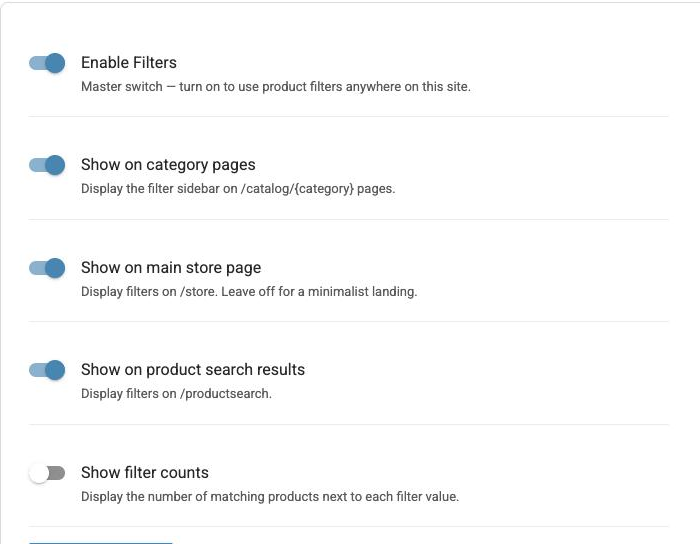
Go to Filters in your dashboard and open the Settings tab. Filters are off until you flip the master switch:
- Enable Filters — the master switch. Turn it on to use product filters anywhere on this site.
- Show on category pages — display the filter sidebar on your category pages (on by default).
- Show on main store page — display filters on your main store page. Leave off for a minimalist landing.
- Show on product search results — display filters alongside search results (on by default).
- Show filter counts — display the number of matching products next to each filter value, like Blue (12).
Choosing which filters appear
The Filters tab lists every filter available to your store. You don't have to build anything — IndieMade creates the list for you:
- Price — a slider covering the price range of whatever the shopper is looking at.
- Availability — an "In Stock" checkbox so shoppers can hide sold-out items.
- Category — your product categories, with counts that include everything nested inside them.
- Your attributes — one filter for every variation or option name in your store: Size, Color, Material, whatever you use.
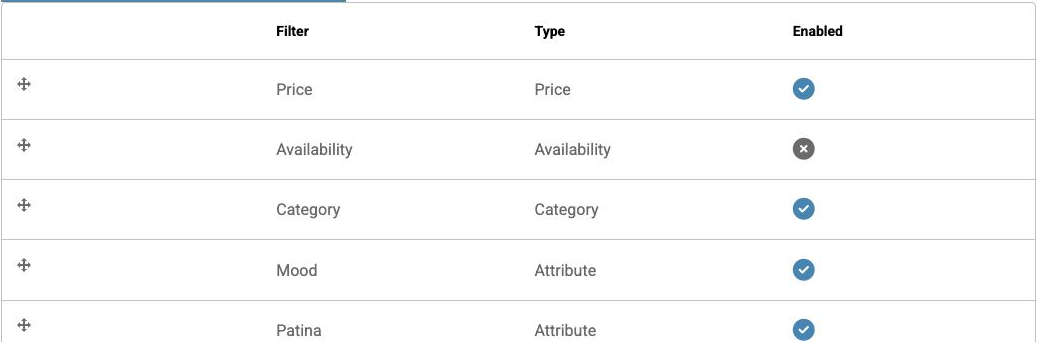
Every filter starts turned off. Click the status icon to enable the ones that make sense for your shop — that saves immediately, there's no separate step. Dragging rows sets the order they appear in the sidebar, and Save Filters stores that order.
Different filters for different categories
The By Category tab lets you fine-tune which filters appear on a specific category page. Pick a category, then uncheck any filter you don't want shown there, or reorder them for that category. A "Ring Size" filter makes sense on your Rings category but just adds noise on Wall Art.
Two things to know: only filters you've enabled globally can be adjusted here, and an override applies to that one category exactly — not to its subcategories, and not to your main store page or search results.
What shoppers see
Shoppers get a sidebar next to your products with the filters you enabled. As they check boxes or drag the price slider, the product grid updates instantly, and a Clear All Filters link appears once something is active.
On category pages they also get a count of matching products and a sort menu offering Price: Low to High and Price: High to Low. The main store page and search results show the sidebar without the count and sort bar.
Filtered views are shareable — the choices live in the page address, so a shopper can send a link to "blue ones under $50" and it opens exactly that view.