Orders
Your orders page is where you manage every sale — from the moment a customer checks out to the moment their order is complete. Go to Dashboard → Orders to see all your orders.
The Orders List
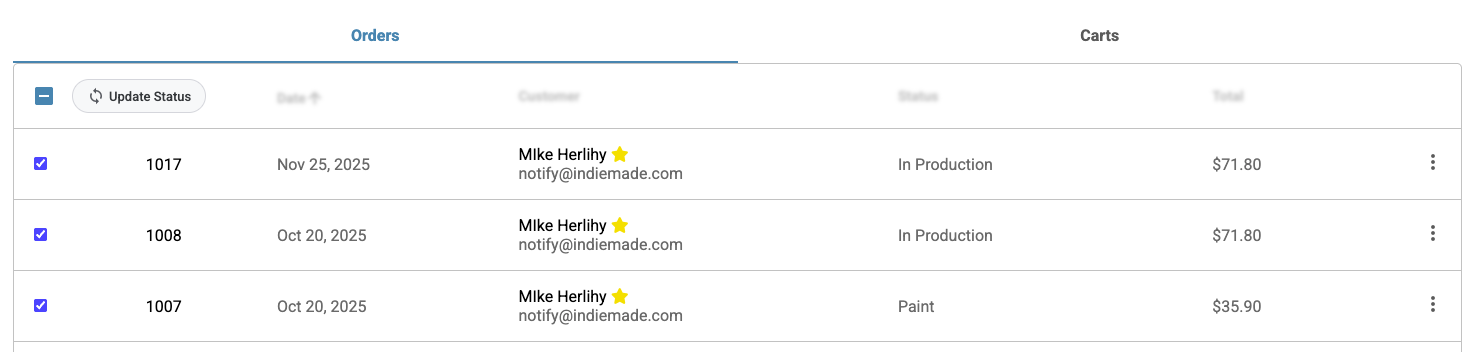
The orders list shows all placed orders with key details at a glance: order number, date, customer name and email, current status, and order total. Click any order number to open its detail page.
Use the search bar to find orders by customer name, email, or order number. You can also filter by status to see only orders in a specific state.
The page has two tabs:
- Orders — Placed orders that have been paid for or are awaiting payment
- Carts — Shopping carts that haven't been checked out yet (abandoned carts)
Order Statuses
Every order has a status that tells you where it is in your process:
- Payment Pending — The order was placed using a manual payment method (check, money order, cash on pickup) and is waiting for you to confirm payment
- Payment Received — Payment is confirmed. Most orders start here when customers pay with Stripe, PayPal, or Square
- Processing — You're actively working on the order
- Completed — The order is finished and shipped
- Canceled — The order was canceled
You can change an order's status from its detail page. If you need a more detailed workflow — for example, tracking orders through production steps like "Cutting," "Assembly," and "Quality Check" — see Order Workflow & Stages.
Bulk Updating Order Status
When you need to move several orders to the same status at once, use bulk editing instead of updating them one at a time.
- Check the boxes next to the orders you want to update (or click the checkbox in the header to select all)
- Click the Update Status button that appears
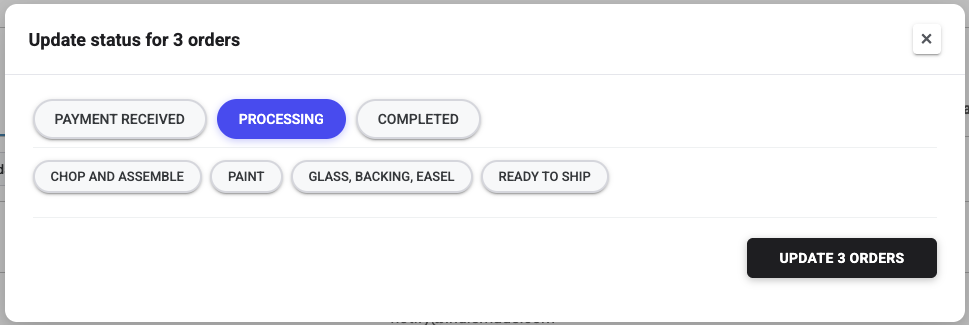
- Choose the status you want to apply
- Click Update Orders
A dialog appears with your available statuses. If you have custom workflow stages, those appear as well so you can move orders directly to any stage.
Order Details
Click an order number to open its detail page. From here you can view and edit everything about the order.
Contact Information
The customer's email address and phone number. Click the edit button to update either one. Click the email address to send the customer a message.
Shipping & Billing Address
View or edit the shipping and billing addresses. If the billing address is the same as shipping, it will show "Same as shipping."
Order Items
The products in the order with quantities and prices. You can:
- Add items — Search for a product, select its variations, and set a quantity. You can override the default price with a custom amount.
- Edit items — Change the price or quantity of an existing item
- Remove items — Remove a line item from the order
Price Adjustments
Add custom discounts or fees to an order — for example, a rush fee, gift wrapping charge, or a special discount. Each adjustment has a label and an amount (use a negative amount for discounts). You can add, edit, or remove adjustments at any time.
Payments
View payment records for the order. You can record additional payments if needed — for example, if a customer pays the balance with a different method. Each payment record shows the gateway, amount, and when it was recorded.
Order Comments
Add notes to an order for your own reference. Check Notify Customer when adding a comment to also send the customer an email with your message — useful for sending updates or asking a question about their order.
Shipping Status
Shipping status is separate from order status — it tracks whether the physical shipment has gone out, not where the order is in your workflow. Each order has a shipping status with three states:
- Ready — The shipment is prepared but hasn’t left yet (this is the default)
- Shipped — The shipment has been sent to the customer
- Canceled — The shipment was canceled
You can also enter a tracking number on the order detail page. When you change the shipping status to Shipped, a confirmation email is automatically sent to the customer with the tracking number and order details. You can customize this email in Store Settings → Shipping Confirmation.
Creating an Order
You can create orders manually — for example, for phone orders, custom commissions, or wholesale requests.
- Go to Dashboard → Orders
- Click Add Order
- Choose the order type
- Select New or Existing customer and enter their email
- Click Create
- Add items, set prices, and fill in shipping details
- Click Place Order when ready
Tip: When adding items to a manual order, you can set a custom price — useful for giving a customer a special deal or creating a custom-priced commission.
Printing Invoices
You can print a professional invoice for any order from its detail page. The invoice includes the order number, date, customer information, shipping and billing addresses, all line items with images, and the order total.
Abandoned Carts
The Carts tab shows shopping carts that customers started but never checked out. Over time these can pile up. To clean them out, click Delete Stale Carts and choose how old a cart should be before it's removed (from 2 days up to 8 weeks, or all of them).
Tip: You can send automatic email reminders to customers who abandon their carts. Set this up in Store Settings → Abandoned Cart.