Test Your USPS Rates
Guessing at shipping is expensive. Quote too much and customers abandon the cart; quote too little and you pay the difference out of your own margin.
Test Your Rates lets you build a pretend order, pick a destination, and see exactly what USPS would charge — and why. Nothing is saved, no order is created, and no customer is involved. It quotes through your real saved USPS settings, exactly as checkout would.
Where to find it
Go to Settings → Shipping. If USPS is your saved shipping method, you'll see the Test Your Rates panel near the bottom of the USPS settings, under the ship-from ZIP code.

Two things to know about when it appears:
- It shows up only after your USPS method has been saved. The tester quotes your stored settings, so there has to be something stored to quote.
- It's for USPS only. Shippo, ShipStation and Simple Shipping don't have it.
Running a test
- Click Test My Rates.
- Search for a product by name or SKU and click it to add it to the test order. Add as many as you like.
- Set a Qty on each one — this is the interesting part, since quantity is what reveals whether your packing choices are right.
- Check the Ship from and Ship to ZIP codes. Both start out as your own ZIP, so change the destination to somewhere your customers actually are — the far side of the country is the most useful test.
- Click Test my rates.
Reading the results
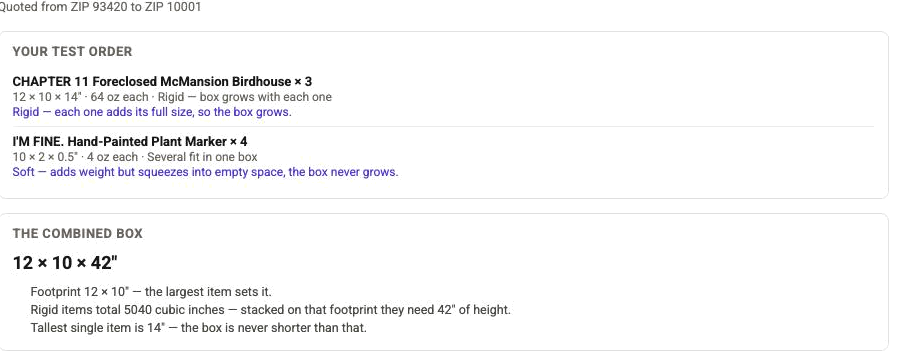
Your test order lists each product with its size, its weight, and the packing choice you gave it — plus a plain-English note on what that choice does to the box. This is where you catch a product that's set to Rigid when it should be soft, or one that's missing its measurements.
The combined box shows the single box USPS was asked to price, and the reasoning behind it: which item set the footprint, how much space the rigid items needed once stacked, and the tallest item the box can never be shorter than.
In the example above, three rigid birdhouses stack into a 12 × 10 × 42" box. Four soft plant markers were added to the same order and the box did not grow at all — they only added weight. That is the difference between the two packing choices, in one screen.
The rates follow, cheapest first, one card per USPS service you have enabled. Each shows the package that was priced and which pricing basis won.
What the pricing notes mean
Priced on actual weight. The ordinary case — USPS charged by what the parcel weighs.
Priced on dimensional weight. The box is large for its weight, so USPS charged for the space it takes up on the truck instead of the pounds. If you see this, a smaller or better-packed box will save you money.
Cubic pricing won. A small-box discount beat the weight price. Good news — your packing is working in your favour.
The test worth running
Take one product and quote it at quantity 1, then 3, then 6.
- If the price climbs steeply on something soft and flat, it's set to Rigid and shouldn't be.
- If it barely moves on something bulky, check that its dimensions are actually filled in.
- If the box grows taller and taller, that's Rigid working correctly — but it's worth asking whether you'd really mail it that way.
See How to Quote Multiple Items for what each setting does.
If you get no rates back
"… has no size saved, so it added nothing to the box." That product is missing its dimensions. Add them on the product's edit form under Package Weight and Dimensions.
"USPS returned no rates for this order." Usually one of two things: no USPS services are ticked in your shipping settings, or the items in the test order have no weights and sizes. A box with no dimensions and no weight isn't something USPS can price.
Good to know
- The test order is never saved. It exists just long enough to get a quote.
- Testing is domestic only — both ZIP codes must be 5-digit US codes.
- A test order holds up to 30 different products, up to 99 of each.
- Rates come back only for the USPS services you've enabled. If a service you expected is missing, check the service list further up the page.
Related: Calculated Shipping with the United States Postal Service (USPS)