The Featured Products Section
Real products from your shop, laid out in one of your store's own displays. Prices, sold-outs and hidden products stay current on their own.
Best for: Putting chosen products on your homepage or any page.

On a phone
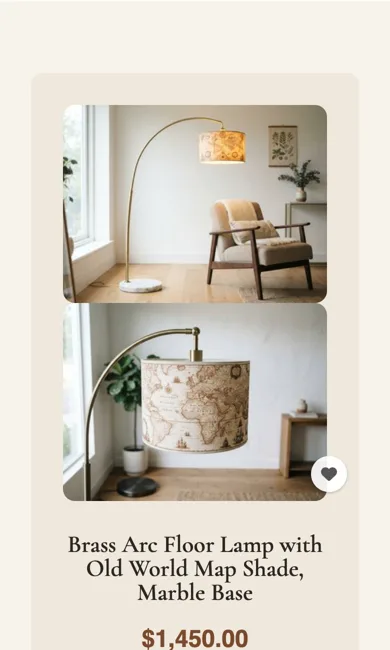
Adding it
Turn on the Editor, click Add new section here, and choose Featured Products under Section Builder. It starts with sample words and pictures; replace them with your own. Click Modify on the section's toolbar to open its drawer. The steps, with pictures, are in Building Pages with the Section Builder.
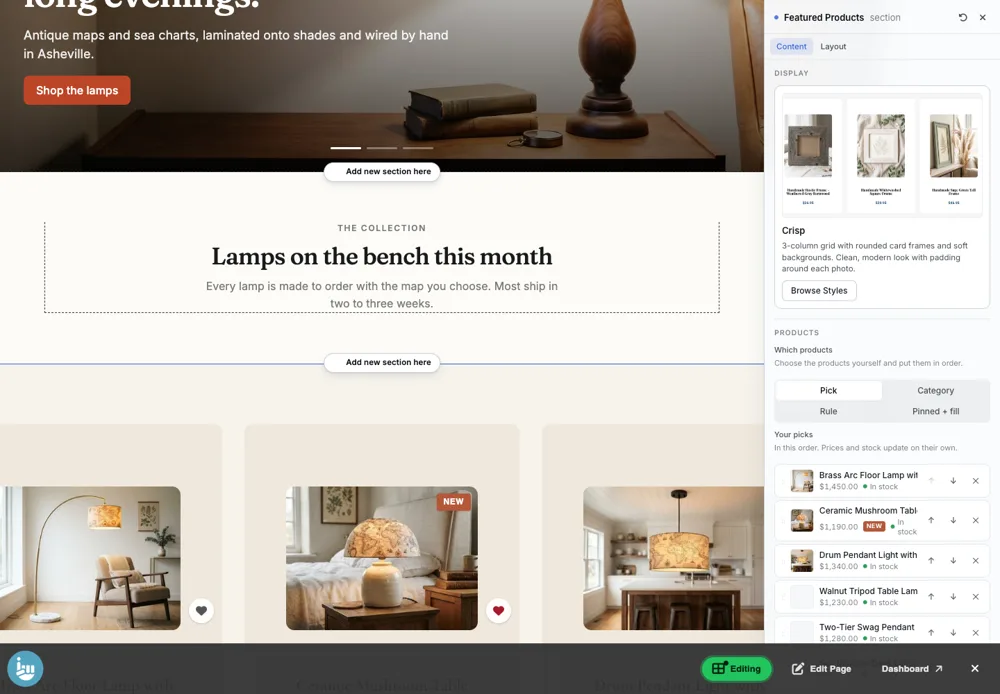
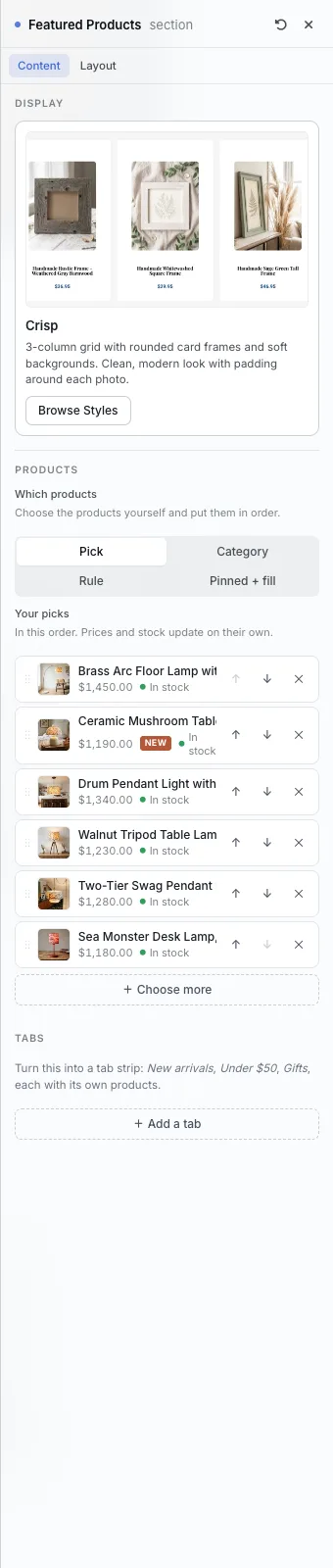
The Content tab
- Display: the look of the product cards. Browse Styles shows every display your store offers.
- Which products: Pick (choose them and their order), Category (everything in one category), Rule (filter by category, attributes, price, stock and flags) or Pinned + fill (a few chosen first, the rest filled in).
- Your picks: shows each product with its price and stock. Use the arrows to reorder and + Choose more to add.
- Tabs: turn the section into a tab strip, such as New arrivals, Under $50 and Gifts, each with its own products.
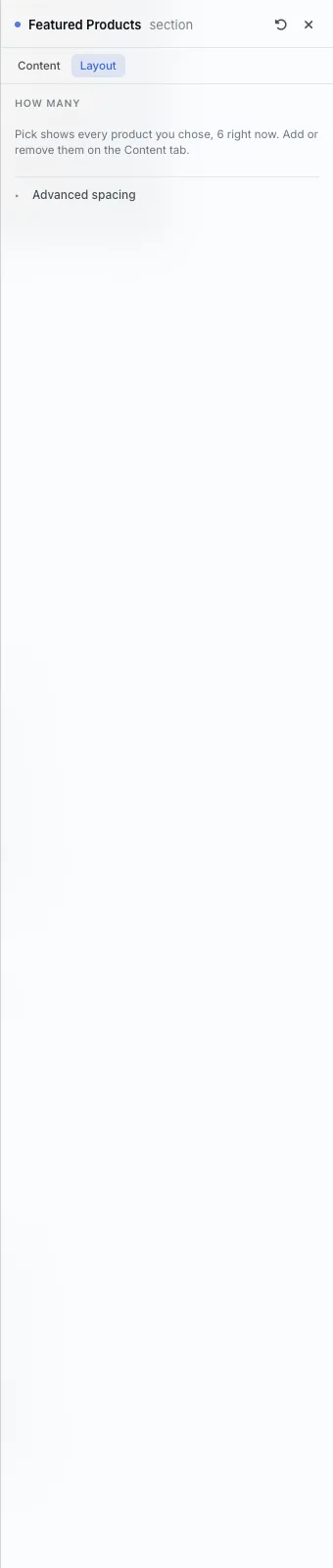
The Layout tab
- How many: in Pick mode, every product you chose is shown. In other modes it moves in whole rows of the display, so the last row is never ragged.
The settings every section shares are explained in Section Colors, Fonts and Backgrounds.
Featured Products takes its look from your store's display, so it has only the Content and Layout tabs.
Tips
- Use Category or Rule and the section stays up to date as you add products.
All Section Builder sections · Questions? Email support@indiemade.com.