How to Quote Multiple Items
When someone orders two or three of the same item, should the shipping cost double? Triple? Or stay about the same?
It depends entirely on what you make. Three ceramic mugs need a bigger box than one. Three tea towels fit in the same envelope as one. How to quote multiple items is where you tell IndieMade which of those your product is, so the shipping quote your customer sees at checkout matches what the postage actually costs you.
Where to find it
- Edit a product.
- Scroll to Package Weight and Dimensions, near the bottom of the product form.
- How to quote multiple items sits just below the box size fields.
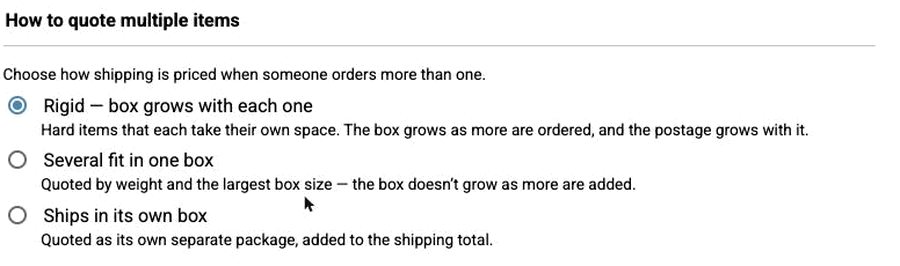
The three choices
Rigid — box grows with each one
Hard items that each take their own space. The box grows as more are ordered, and the postage grows with it.
Choose this for anything that won't squash: mugs, jars, framed pieces, sculpture, boxed sets. Two of them genuinely need twice the room.
Several fit in one box
Quoted by weight and the largest box size — the box doesn't grow as more are added.
Choose this for soft or flat things that tuck into the space already there: scarves, tea towels, prints, patches, stickers, cards. Adding another one makes the parcel heavier but not bigger.
Ships in its own box
Quoted as its own separate package, added to the shipping total.
Choose this for anything that travels alone — an oversized, awkward or fragile piece that you'd never pack alongside something else. Each one is priced as its own parcel and added on top.
Changing many products at once
You don't have to edit products one at a time. If you already have a full catalogue, the bulk editor will set this on as many products as you like in a single step.
- Go to Products.
- Tick the products you want to change — or use the checkbox in the header row to select everything on the page.
- Click More Bulk Actions.
- Choose How to Quote Multiple Items.
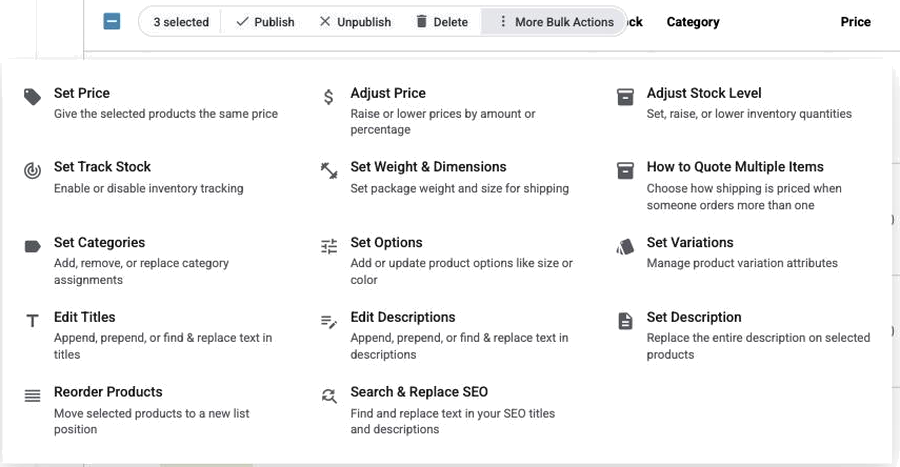
- Pick one of the three options and click Update products.
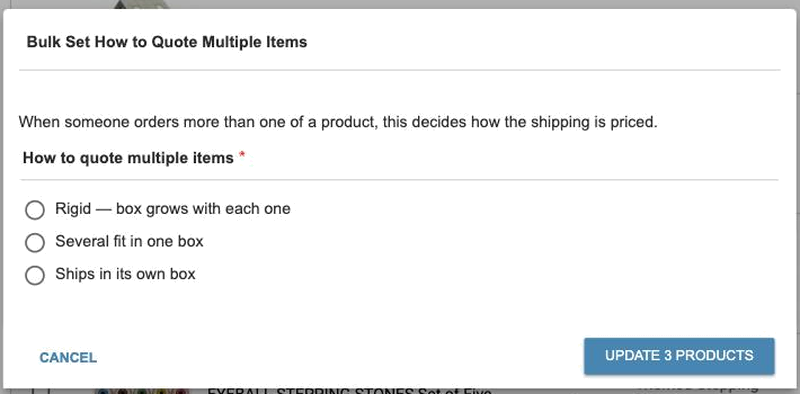
Filtering by category first makes this quick — all your prints in one pass, all your mugs in another. The same menu also has Set Weight & Dimensions, so you can fill in sizes for a batch of products at the same time.
If you don't choose one
Rigid is the default. Products you created before this setting existed are quoted as Rigid until you change them, which is the safe assumption — it never quotes a customer less postage than the parcel actually costs.
It's still worth going through your catalogue. Anything soft or flat left on Rigid is quoting more postage than you need, and overpriced shipping loses sales.
This only works if weights and sizes are filled in
The setting tells IndieMade how to combine your products. It still needs to know how big and how heavy each one is. If a product has no weight and no dimensions, it contributes nothing to the box, and the carrier may return no rates at all.
Measure the package you'll mail — not the item itself. Use the weight and size of the box or mailer with the item and any padding inside, ready to ship. That's what the carrier prices postage on.
Which shipping methods use this
This setting affects USPS, Shippo and ShipStation — the methods that quote live carrier rates by packing your order into a box.
If your store uses Simple Shipping or a flat rate, the setting doesn't appear at all. Those methods charge the rates you set yourself, so there's nothing for it to change.
Check your choices before you rely on them
If your store uses USPS, you can build a pretend order and see exactly what these settings produce — the box IndieMade builds, and the postage USPS quotes for it — without pushing a real order through checkout. See Test Your USPS Rates.