Using the Upgraded Variations Editor
The upgraded variations editor is a rebuilt, faster way to manage variations and options on your products. Everything happens inline on the product page — adding variations, reordering options, setting prices, attaching photos — with no page reloads. And its most important change is one you can't see at a glance: every variation carries its own vary settings, so you can finally say things like "prices vary by Size, but quantities vary by Color." For the full story of why that matters, see Why We Upgraded Variations.
Turning it on
- Go to Settings → Products.
- Under Product Features, check Use upgraded variation UI.
- Save.
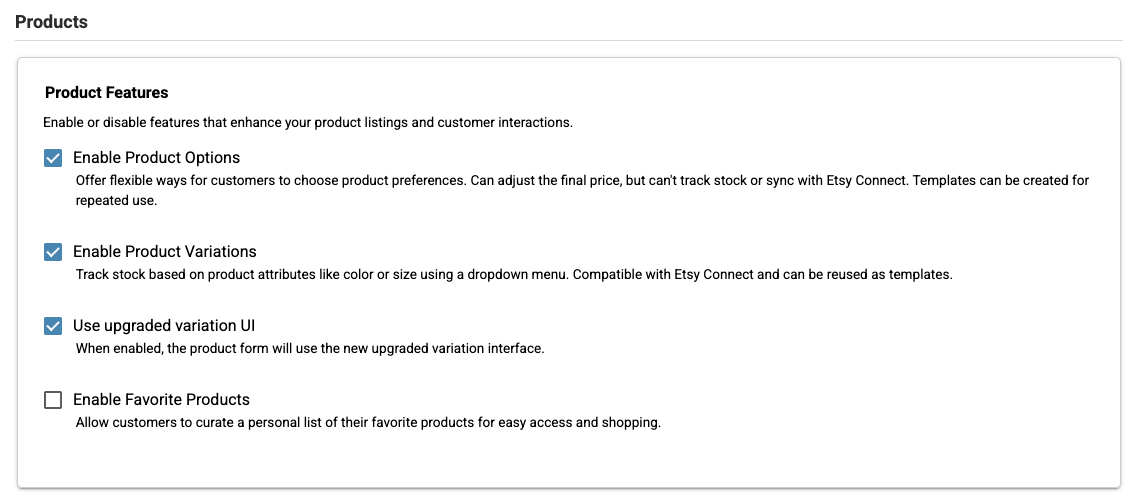
From then on, every product form uses the new editor, and the Variations menu in your dashboard opens the new Variation Templates screen. Your existing products and variations are untouched by the switch itself — this changes the editor, not your data.
The editor on the product page
Edit any product and scroll to Variations.
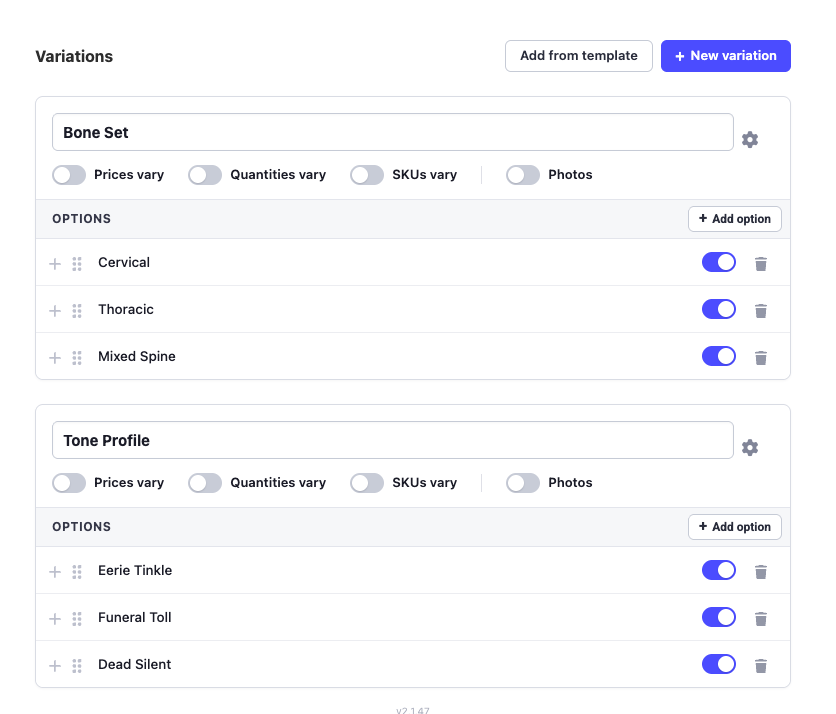
Two ways to add a variation:
- New variation — build one from scratch for this product: name it, add options, done.
- Add from template — pull in a variation you've already built once. See Variation Templates.
The four switches on every variation
Each variation card has its own set of toggles — and this is the heart of the upgrade. They apply to that variation only:
- Prices vary — each option of this variation affects the price.
- Quantities vary — stock is counted per option of this variation.
- SKUs vary — each option of this variation gets its own SKU.
- Photos — each option gets its own photo, shown to the customer as they choose.
A made-to-order example: Size with Prices vary on, Color with Quantities vary on. Each size has its own price; each color has its own count. Sell the last one in a color and that color is sold out in every size — which is how it works on Etsy too.
Options
Within each variation, options can be added, renamed, dragged into a new order, switched off temporarily (the toggle on the right), or deleted. An option that's switched off stays on the product but isn't offered to customers — handy for a colorway you're out of but will make again.
Two ways a price can work
When Prices vary is on, a variation prices its options in one of two modes:
- Each option sets its own price — the option's price is the full price, regardless of the base price. Best when sizes or formats have completely different prices.
- Each option adjusts the base price — the option adds to (or subtracts from) the product's base price. Best for simple markups like "+$5 for Large".
Moving a product off the old vary settings
Products created in the original editor stored their vary settings on the product, not per variation. After you switch to the upgraded editor, any product still carrying those old settings shows a yellow notice at the top of its form:
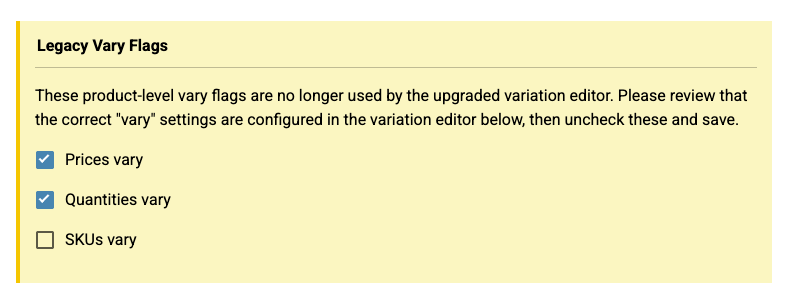
The old flags are no longer used by the new editor, but they're left visible so you decide when to retire them. There are two clean ways to do it:
Path 1: Update the product in place
- In the variation editor below the notice, review each variation's toggles and make sure the right ones are on. (If the product had "Prices vary" on in the old system, decide which variation the price actually varies by, and switch it on there.)
- Check your options, prices, and quantities look right.
- Uncheck the boxes in the Legacy Vary Flags notice.
- Save.
Path 2 (Etsy products): re-import the listing
If the product is linked to Etsy — especially if its quantities ever drifted out of step with the Etsy listing — the cleanest fix is to start from the source of truth:
- Make sure the Etsy listing has the correct variations, prices, and quantities.
- Delete the product on IndieMade.
- Import the listing again from Etsy Connect.
The upgraded editor speaks Etsy's variation model natively, so the re-imported product mirrors the listing exactly — including which variation controls price and which controls quantity. One caution: if you had customized the IndieMade copy (a different title or description than Etsy), those changes are lost on re-import, so use Path 1 for those products instead.
Related: Why We Upgraded Variations · Variation Templates · Product Variations and Options (the original editor)