Product Search
Your IndieMade site has a built-in search that helps shoppers find exactly the product they're after. Results appear on a clean search page using your store's own layout and style, with a result count and a search box to refine from.
Showing the search bar
The search bar lives in your site header. Go to Design, open your header settings, and you'll find two checkboxes:
- Show Searchbar: puts search in your header.
- Minified Searchbar: when checked, the searchbar displays as an icon that expands when clicked. It's on by default; uncheck it if you'd rather show a full search box all the time.
Choosing what search covers
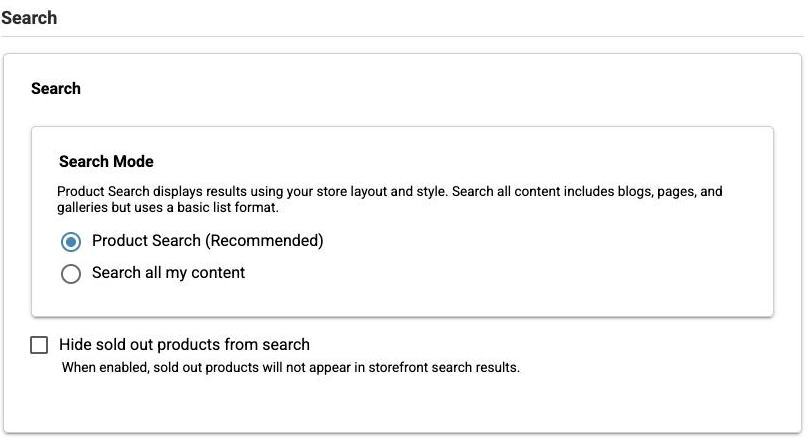
In Settings → Store, the Search section has two modes:
- Product Search (Recommended): searches your products and shows results in your store's product grid, styled like the rest of your shop. Shoppers land on a search page with the result count and can refine their search right there.
- Search all my content: uses a plain list format rather than your store layout.
What gets searched
Search looks at your product's title and description, plus its page title and meta description: those last two carry extra weight, so they're a good place for words shoppers actually type.
Newly saved products are searchable straight away. If you've just imported a large batch, the rest catch up in the background over a little while.
Hiding sold-out products
The Hide sold out products from search checkbox keeps sold-out items out of shoppers' search results. Two things to know:
- It applies to products with stock tracking switched on. A product with any variation still in stock stays visible.
- In Product Search mode the change takes effect immediately. In Search all my content mode it only takes hold once the search index refreshes, and the same is true when you switch it back off.
If your sold-out setting is already Do not show or Move to the sold page, sold-out products are excluded from search anyway and this checkbox doesn't change anything.
Search and filters work together
If you've enabled Product Filters, the filter sidebar appears right on the search results page, a shopper can search "earrings," then narrow to silver ones under $40 without leaving the page. This needs both the filters master switch and Show on product search results turned on, and it works in Product Search mode only.
The results page
Results open with a heading, a search box carrying the shopper's words so they can refine, and a count of matches. An empty search shows the search box on its own, and a search with nothing behind it reports zero results.
Results show fifty products per page. When there are more, numbered pages with Previous and Next appear, so shoppers can reach every match. The search words stay in the page address. A shopper can bookmark a results page, and the browser Back and Forward buttons work. A search with one page of results shows no page numbers.