Bulk Editing Orders
You can update the status of multiple orders at once from your orders page. This saves time when you need to move a batch of orders to the same status — for example, marking several orders as Processing after a production run, or moving a group to Completed when they've all shipped.
How to Bulk Update Order Status
- Go to Dashboard → Orders
- Check the boxes next to the orders you want to update
- Click the Update Status button that appears in the header row
- Choose the status you want to apply
- Click Update Orders
All selected orders will be updated to the chosen status.
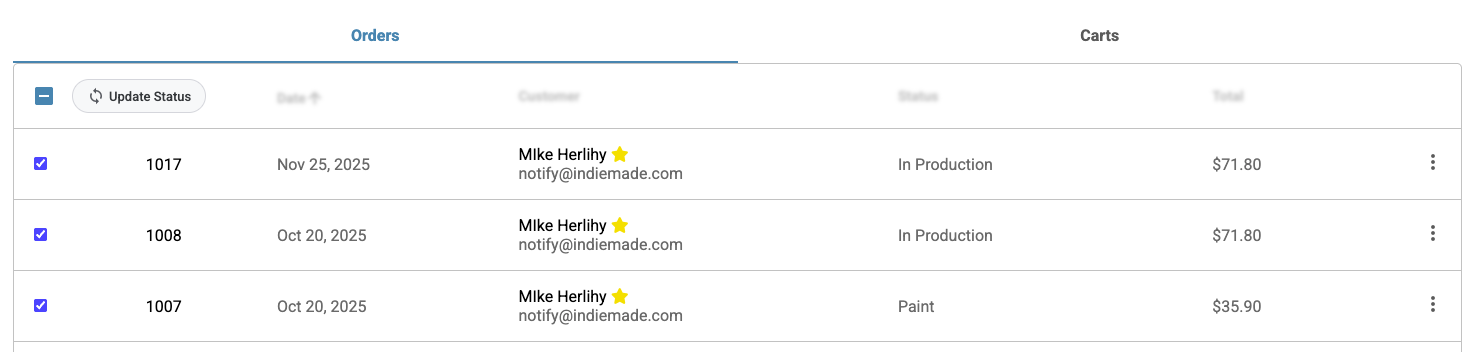
Choosing a Status
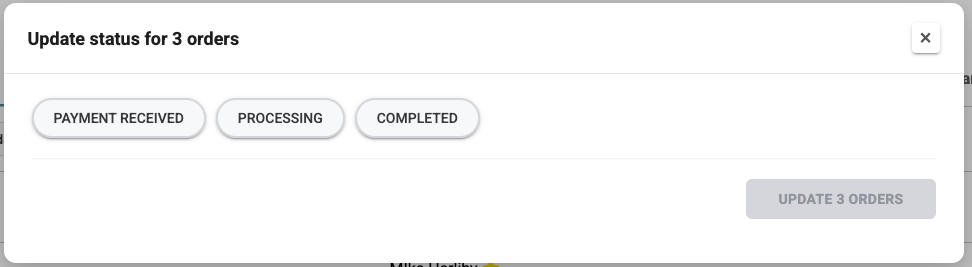
When you click Update Status, a dialog appears with the available statuses shown as buttons. The standard statuses are:
- Payment Received — The order has been paid for
- Processing — You're working on the order
- Completed — The order is finished and shipped
Click the status you want, then click the Update Orders button to apply it.
Custom Workflow Stages
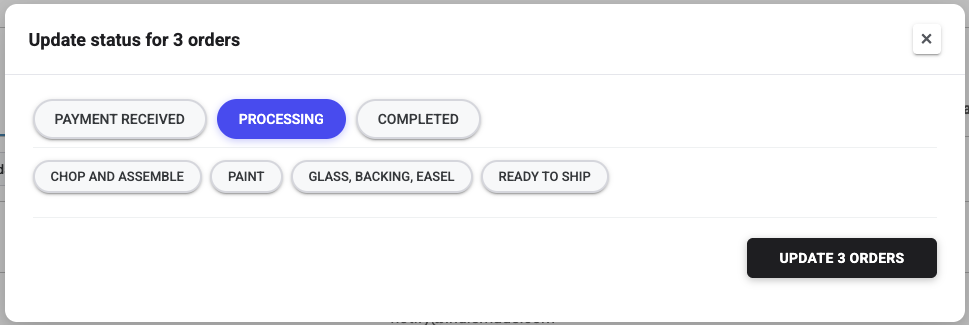
If you have custom order workflows set up, your custom stages also appear in the status dialog below the standard statuses. This lets you move orders directly to any stage in your workflow — for example, moving a batch of orders to a production stage like "Paint" or "Ready to Ship."
Tip: You can select all visible orders at once by clicking the checkbox in the header row.