Shipping to Some Countries and Not Others
Where you ship is decided by your destinations: the list of countries, states and regions you have given a shipping price. This page shows the three set-ups shops ask about most: ship only to a few countries, ship everywhere except a few countries, and leave out single states such as Alaska and Hawaii. Destinations are included on every plan.
Everything here is for Simple Shipping, where you set your own prices. If you use USPS, Shippo or ShipStation, see Other shipping methods at the end.
The one rule
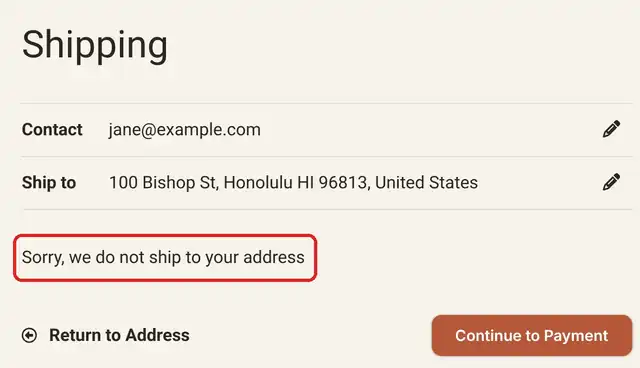
A shopper can only check out if their address fits one of your destinations. If it fits none, or fits a place you left out, checkout shows Sorry, we do not ship to your address and they cannot continue.
Where to find your destinations
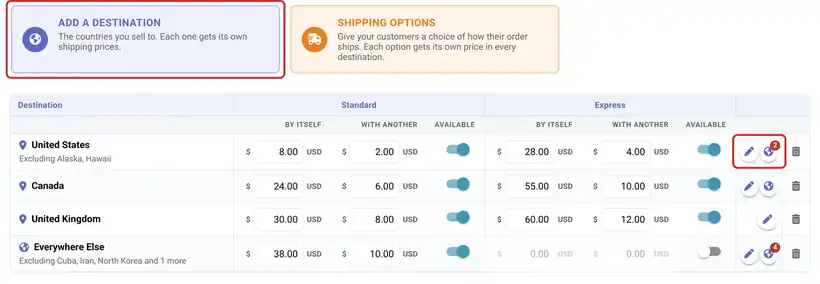
Go to Dashboard → Settings → Shipping. With Simple Shipping chosen as your shipping method, scroll to Destinations. Each destination is one row of the table, with its prices beside it. At the end of each row are the tools you need:
- The pen changes where the row ships.
- The globe picks places inside that row to leave out. It shows on Everywhere Else, on a whole United States, Canada or Australia row, and on group rows such as the European Union. A small number on it counts what is left out.
- The trash can removes the row.
Ship only to a few countries
For example: you ship to the United States and Canada, and nowhere else.
- Under Destinations, click Add a destination. A new row appears and Where does this ship? opens.
- Choose the Country. Leave the state empty unless the price is for that one state only. Click Done.
- Type the row's prices: By itself for one item, With another for each extra item. See Simple Shipping for how the two add up.
- Repeat for each country you ship to.
- Do not add Everywhere Else.
- Click Save Configuration.
That is all it takes. With no Everywhere Else row, the country list at checkout only offers the countries you added, so shoppers elsewhere cannot even pick their country.
Ship everywhere except a few countries
For example: you ship worldwide, but not to a handful of countries your carrier will not serve.
- Click Add a destination and choose Everywhere Else as the Country. It is at the top of the list. Click Done and give it a price.
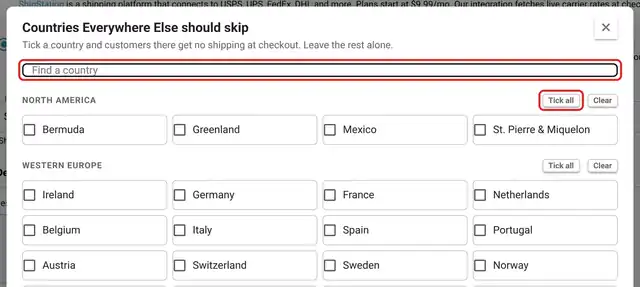
- Click the globe at the end of the Everywhere Else row. Countries Everywhere Else should skip opens.
- Tick each country to leave out. A ticked country turns red with a no-go mark. Countries are grouped by region; use Find a country to search, or Tick all and Clear on a region.
- Click Done. The row now reads Excluding and the countries you ticked.
- Click Save Configuration.
Good to know:
- Everywhere Else means every country that does not have a row of its own. So the list only shows those countries. If the United States has its own row, it is not in this list; leave out US states on the United States row instead (below).
- Because Everywhere Else opens your checkout to the whole world, a country you left out still appears in the country list. Shoppers there get Sorry, we do not ship to your address at the shipping step.
- Add your own rows for the countries you sell to most, and let Everywhere Else catch the rest. A short list is easier to keep priced right than two hundred rows.
Leave out a state, such as Alaska and Hawaii
A whole United States, Canada or Australia row has its own globe for leaving out states and provinces.
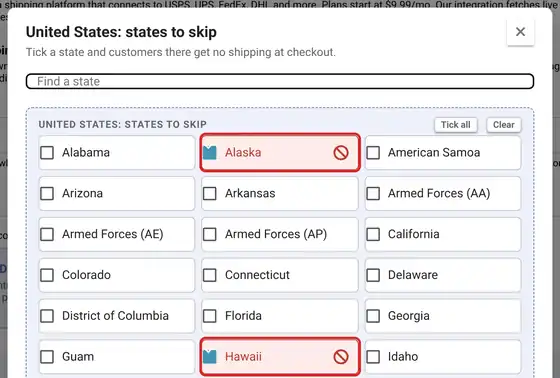
- Click the globe at the end of the United States row. United States: states to skip opens.
- Tick the states to leave out, for example Alaska and Hawaii. Use Find a state to search.
- Click Done, then Save Configuration. The row reads Excluding Alaska, Hawaii.
Group rows work the same way. A European Union, RM Zone 1(Tracked) or RM Zone 2(Tracked) row has a globe that lists its member countries, so you can ship to the EU but skip one country.
Charge a different price for one state
Maybe you do ship to Alaska and Hawaii, but it costs more. Then do not leave them out. Give them their own row instead:
- Click Add a destination, choose United States, then choose the state, such as Alaska. Click Done and type the higher price.
- Do the same for Hawaii.
Two things to watch:
- The first row that fits wins, reading from the top. A whole United States row above the Alaska row catches Alaska first, at the lower price. New rows are added at the bottom, so if your United States row is already there, remove it with the trash can, add the state rows, then add United States again so it sits below them.
- A state you leave out gets no shipping at all, even if it has a row of its own. Leaving out always wins over a price. If Alaska is ticked on the United States globe, untick it before you give it a price.
Offer a service in some places only
If you offer Express or another upgrade, each destination row has an Available switch for it, so you can offer Express at home and not overseas. See Offering Express Shipping and Other Upgrades.
If you choose shipping per product
With Choose a shipping method per product on, each shipping profile has its own destinations table, set up exactly as above, and each product ships under its own profile's destinations. Give every profile the same countries and the same left-out places, so a cart that mixes products is quoted the same way everywhere.
Other shipping methods
- USPS: ships to United States addresses only, until you tick at least one service under USPS International Services. Then shoppers in any country can check out and get live USPS international rates. See Calculated Shipping with USPS.
- Shippo and ShipStation: there is no destinations table. Shoppers see whatever rates your connected carriers return for their address. See Shippo Integration and ShipStation Integration.
Tips
- After a change, try checkout yourself with an address in a country you left out. You should see Sorry, we do not ship to your address.
- Say where you ship on your Shipping & Returns page too, so shoppers know before they reach checkout.
- Not sure what to charge? Check your carrier's price for your heaviest common order to each place, and round up.
Questions? Email support@indiemade.com.