Customizing Your Theme: the Design Page
Everything about how your site looks starts on one page: Dashboard → Design. It has a card for each part of your design. Every card is included on every plan, and nothing you change here touches your products, pages or posts.
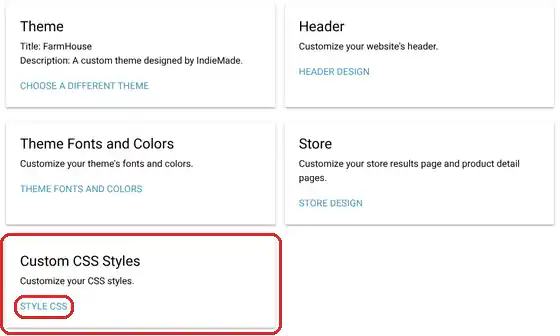
The cards, in the order to use them
- Theme: the starting look of your whole site. The card shows the theme you use now; Choose a Different Theme lets you switch. See Choosing a Theme.
- Theme Fonts and Colors: your own fonts and colors on top of the theme. See Theme Fonts and Colors.
- Header: the logo, menu and header layout. Click Header Design. See Header Design.
- Store: how your store grid and product pages look. Click Store Design. See Store Design and Product Page Layouts and Store Layout Styles. This card is hidden if you have turned commerce off.
- Custom CSS Styles: for anything the settings do not reach, if you know CSS. Click Style CSS. See Custom CSS Styles.
Pick your theme first. Each theme keeps its own fonts and colors, so set those after you have settled on one.
Changing a look while you are looking at it
Many design settings can also be changed right on your site. Open your store, a product, a category, a gallery or your blog while signed in and click the Settings gear in the bottom toolbar. See Display Settings. To build pages out of pictures, columns and buttons, see Building Pages with the Section Builder.
Questions? Email support@indiemade.com.