The Gallery Section
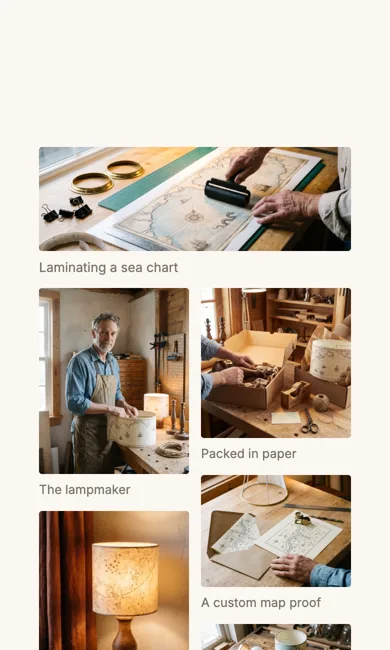
Photos at their own shapes, side by side. A tall portrait next to a wide panorama is the point, not a problem.
Best for: Showing your work, your workshop or a collection, where the pictures carry the story.

On a phone
Adding it
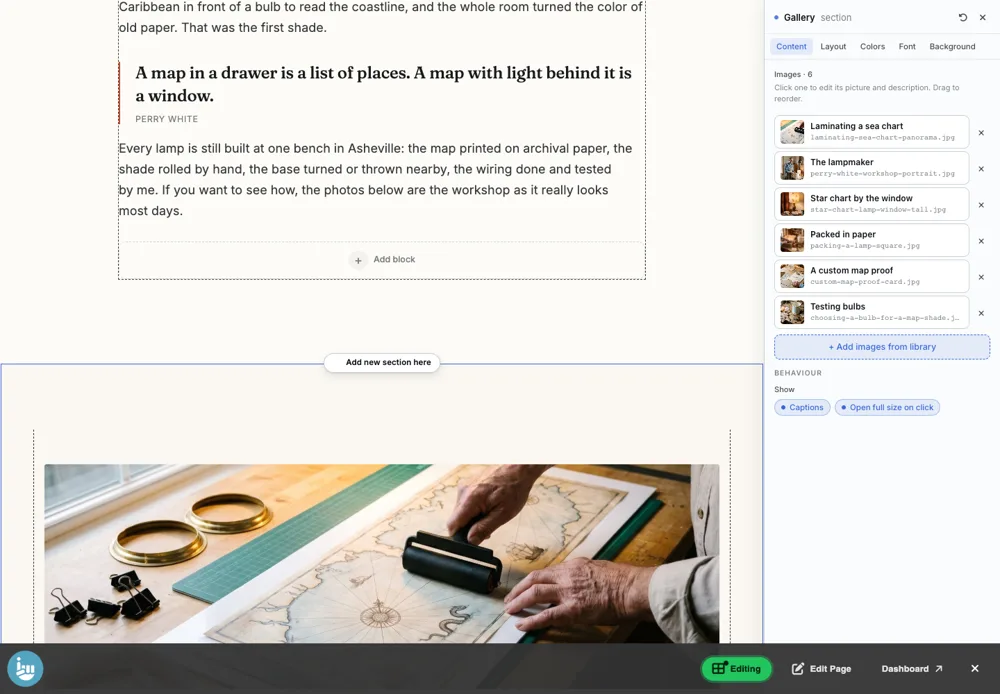
Turn on the Editor, click Add new section here, and choose Gallery under Section Builder. It starts with sample words and pictures; replace them with your own. Click Modify on the section's toolbar to open its drawer. The steps, with pictures, are in Building Pages with the Section Builder.
The Content tab
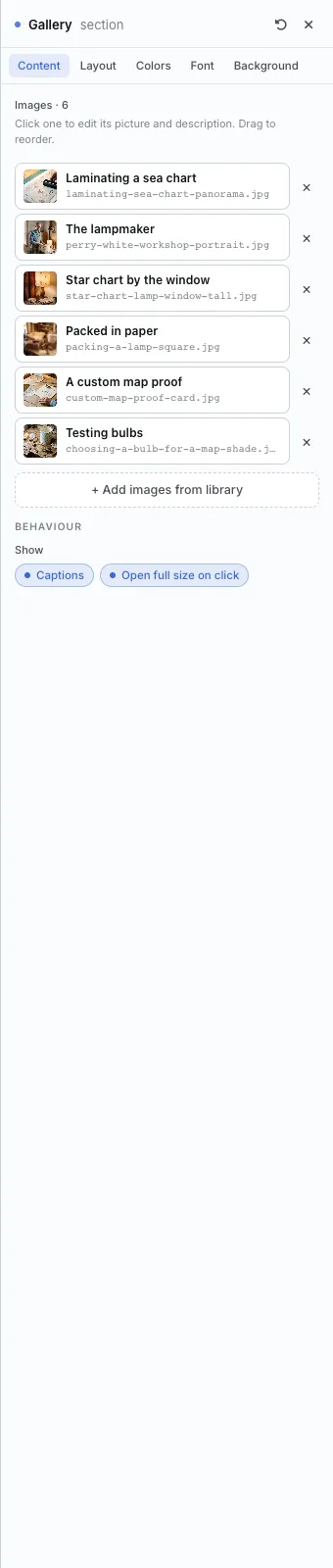
- Images: click one to edit its picture and caption. Drag to reorder. + Add images from library adds several at once.
- Show: turn Captions and Open full size on click on or off.
The Layout tab
- Mode: Masonry and Rows keep each photo's own shape. Grid crops them all to one shape. Slideshow shows one at a time.
- Columns: 2 to 6.
- Gap and Corner radius.
- Lead image: First image leads gives the first photo the full width above the rest.
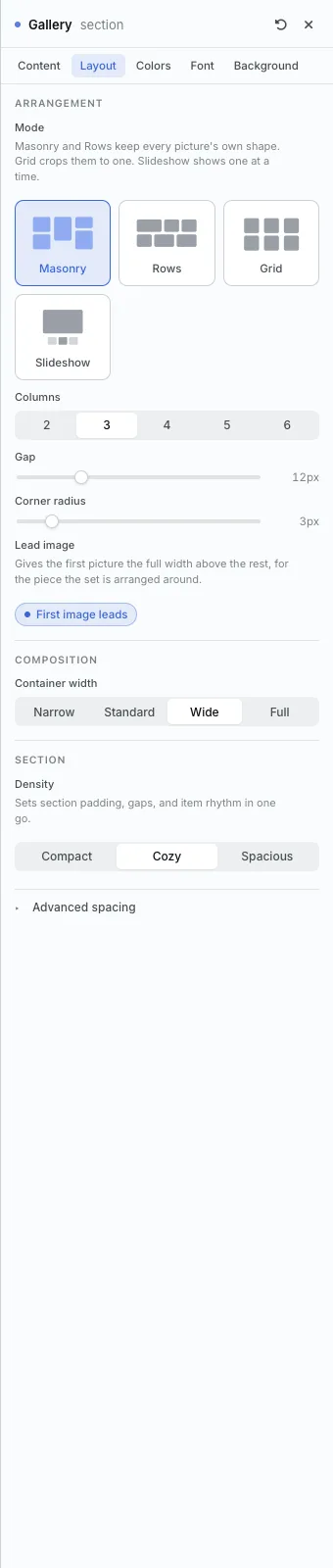
The settings every section shares are explained in Section Colors, Fonts and Backgrounds. Most sections also have Container width, Density and Advanced spacing.
Gallery also has the Colors, Font and Background tabs.
Tips
- Put your best photo first and turn on First image leads.
All Section Builder sections · Questions? Email support@indiemade.com.