The Hero slider Section
Several Heroes that take turns. Each slide has its own eyebrow, headline, text, buttons and photo, with arrows and dots to move between them.
Best for: Showing two to four products, collections or messages in the space of one.

On a phone
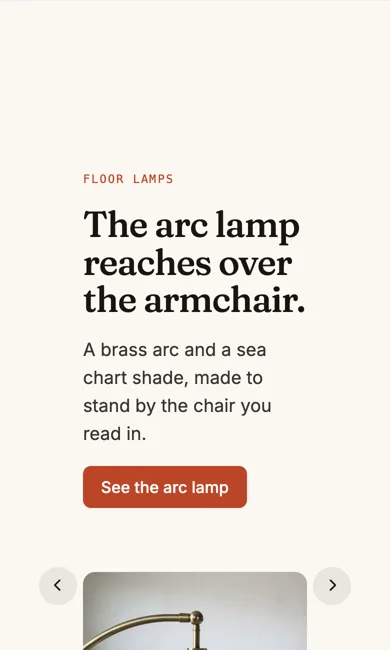
Adding it
Turn on the Editor, click Add new section here, and choose Hero slider under Section Builder. It starts with sample words and pictures; replace them with your own. Click Modify on the section's toolbar to open its drawer. The steps, with pictures, are in Building Pages with the Section Builder.
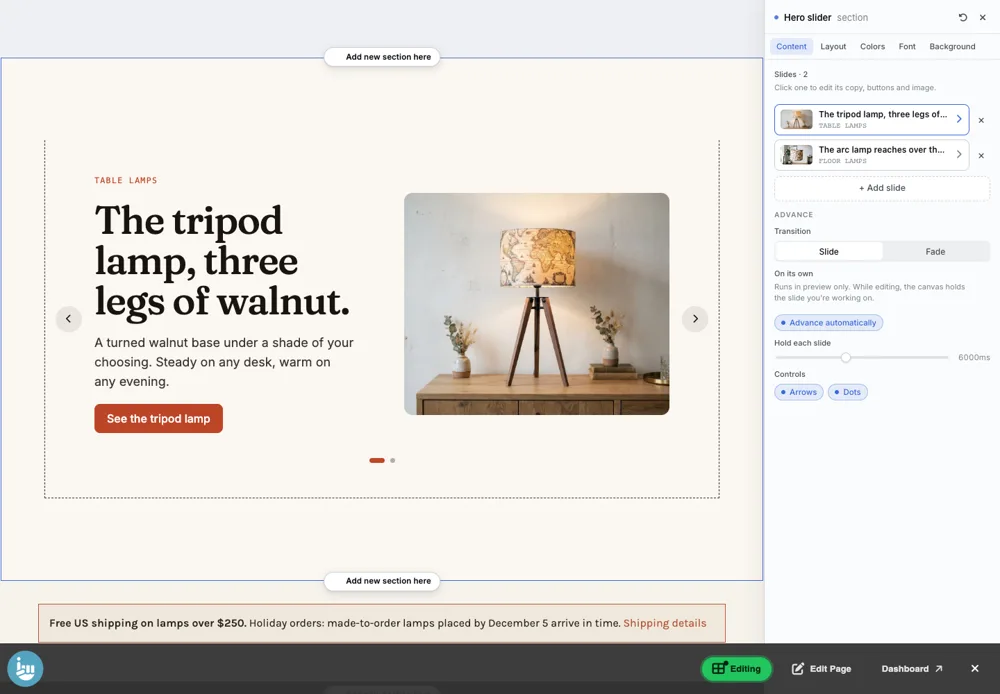
The Content tab
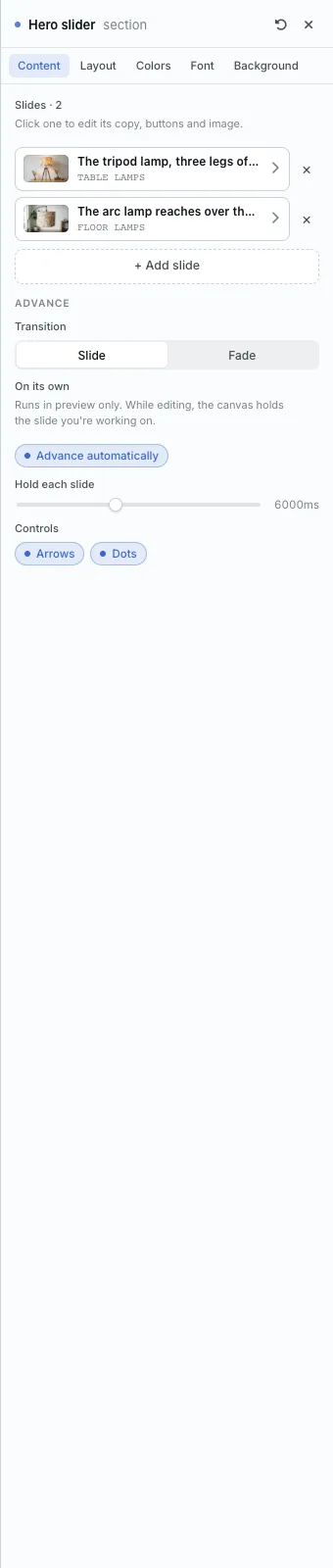
- Slides: the list of slides. Click one to edit it, click the cross to remove it, and + Add slide to add another.
- Transition: Slide or Fade.
- Advance automatically and Hold each slide: whether the slider moves on by itself, and how long each slide stays (6000ms is six seconds). It only plays in preview; while you edit, it holds the slide you are working on.
- Controls: show or hide the Arrows and the Dots.
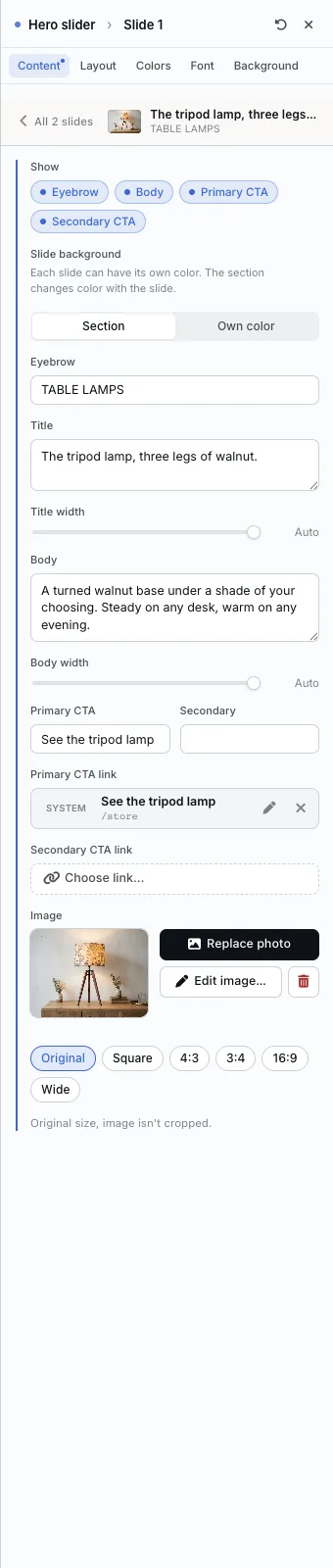
Editing one slide
Click a slide to edit it. It has the same controls as a Hero (Show, Eyebrow, Title, Body, buttons and Image), plus Slide background: choose Own color to give this slide its own color. The whole section fades to that color as the slide comes in. Section goes back to the section color.
The Layout tab
- Variant: Image right, Image left, Centered or Stacked, for every slide.
- Image gap and Stack rhythm, as on the Hero.
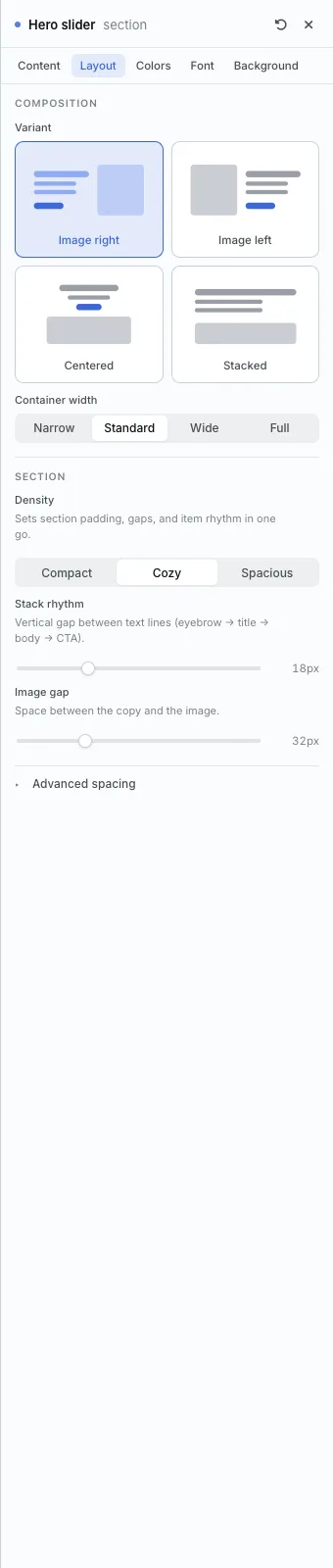
The settings every section shares are explained in Section Colors, Fonts and Backgrounds. Most sections also have Container width, Density and Advanced spacing.
Hero slider also has the Colors, Font and Background tabs.
Tips
- Give each slide its own color to make a set of products feel like a series.
- Three slides is plenty. Visitors rarely wait for a fifth.
All Section Builder sections · Questions? Email support@indiemade.com.