The Collage Section
A hand-arranged pile of photos and paper notes. Tilt them, slide them and bring one forward.
Best for: A playful, personal set: the studio wall, a mood board, behind the scenes.

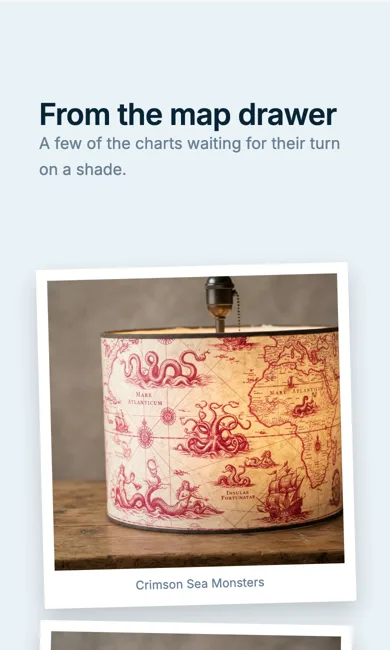
On a phone
Adding it
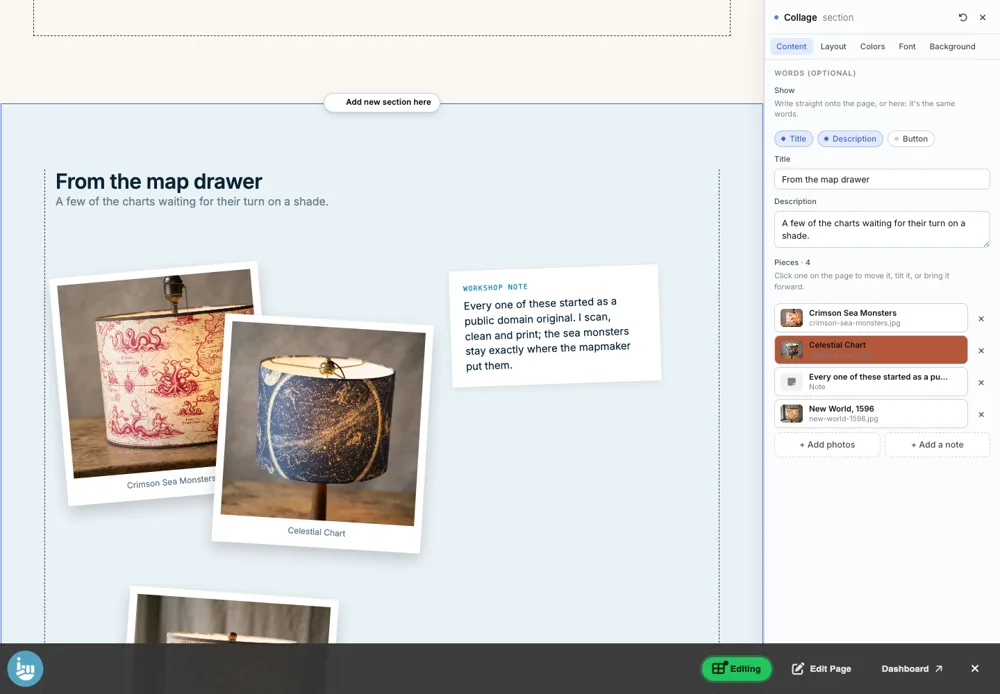
Turn on the Editor, click Add new section here, and choose Collage under Section Builder. It starts with sample words and pictures; replace them with your own. Click Modify on the section's toolbar to open its drawer. The steps, with pictures, are in Building Pages with the Section Builder.
The Content tab
- Words (optional): a Title, Description and Button for the set. Type them here or on the page; they are the same words.
- Pieces: the photos and notes. Click one on the page to move it, tilt it or bring it forward.
- + Add photos and + Add a note (a paper card with a few words and a small label).
The Layout tab
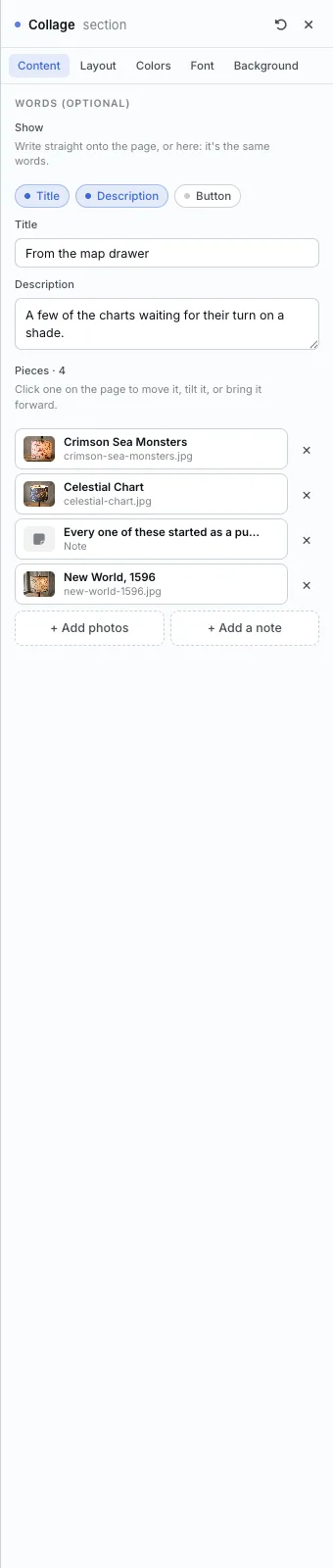
- Style: Editorial, Tabletop, Taped up, Instant photo or Layered paper. Tabletop is a real pile; the rest get tidier.
- Looseness: how untidy. Zero lines every piece up square.
- Space across and Scale: the room between pieces and the size of the whole collage.
- Show Captions.
- Where they sit (Above or Below) and Alignment (Left or Centred) for the words.
- On a phone the pieces stack into one column and keep their frames.
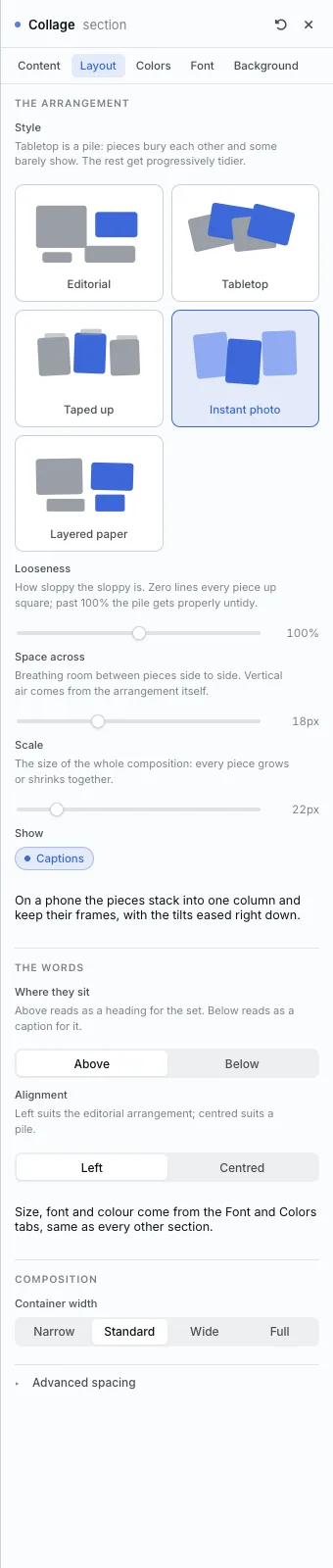
The settings every section shares are explained in Section Colors, Fonts and Backgrounds. Most sections also have Container width, Density and Advanced spacing.
Collage also has the Colors, Font and Background tabs.
Tips
- A note among the photos makes a collage feel personal.
All Section Builder sections · Questions? Email support@indiemade.com.