The Video grid Section
Several videos in a grid, each with an optional caption.
Best for: A set of how-to videos, or several short films of your work.

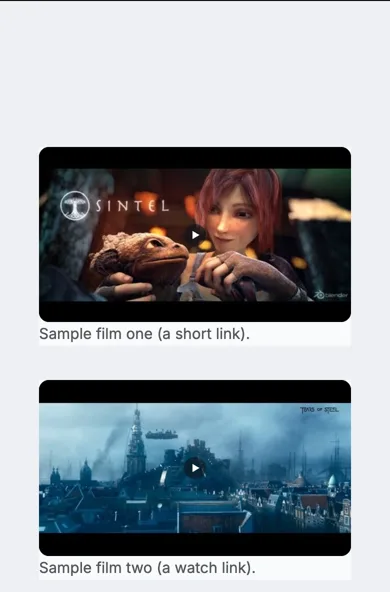
On a phone
Adding it
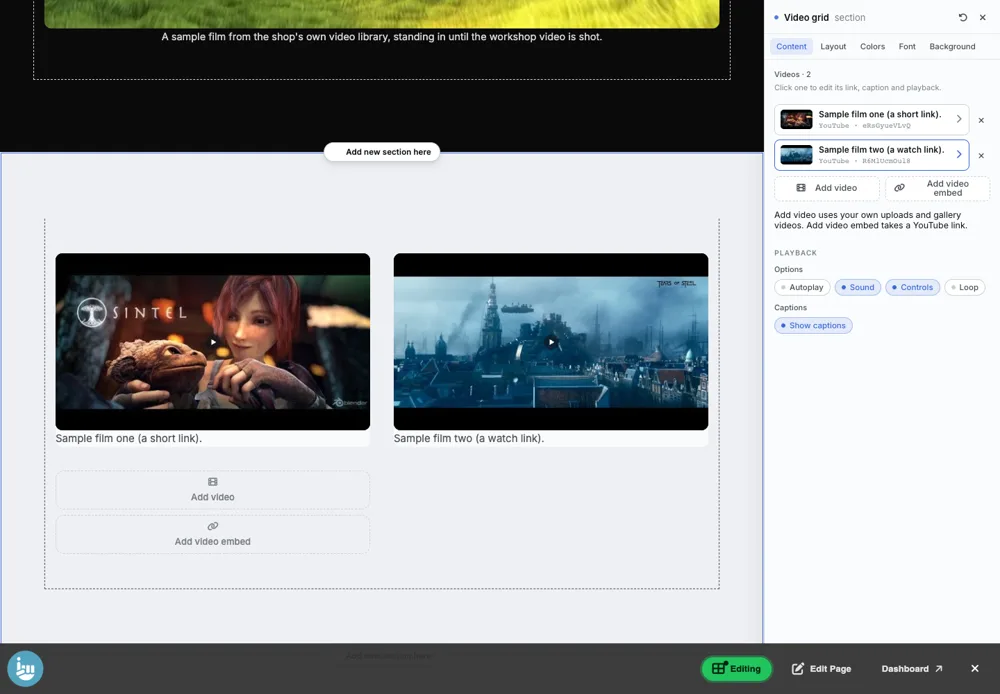
Turn on the Editor, click Add new section here, and choose Video grid under Section Builder. It starts with sample words and pictures; replace them with your own. Click Modify on the section's toolbar to open its drawer. The steps, with pictures, are in Building Pages with the Section Builder.
The Content tab
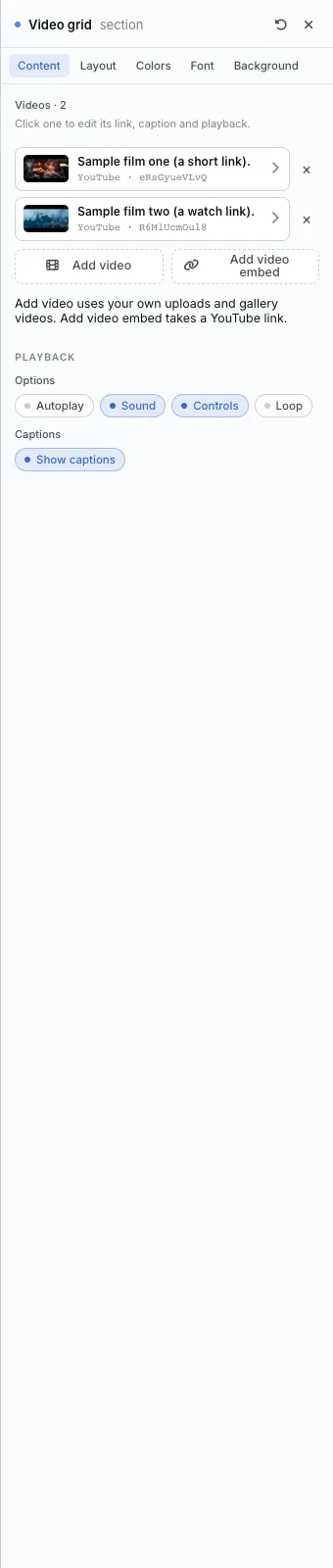
- Videos: click one to edit its link and caption.
- Add video uses your own uploads and gallery videos. Add video embed takes a YouTube link: watch, share, shorts or embed links all work.
- Playback: Autoplay, Sound, Controls and Loop, for every video in the grid.
- Captions: show or hide them.
Editing one item
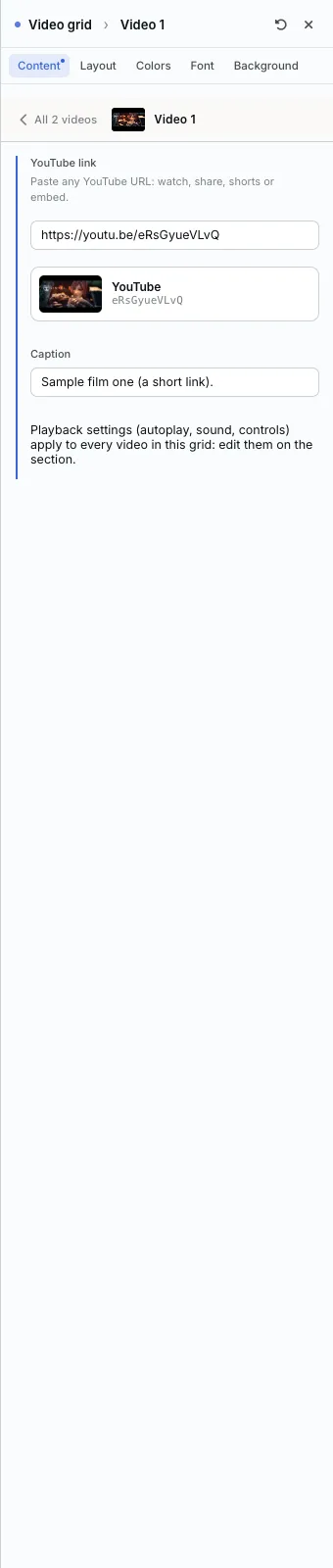
Click a video to change its link and caption. Playback settings belong to the whole grid.
The Layout tab
- Columns: 1 to 4.
- Frame shape: Widescreen (16/9), Classic (4/3), Square (1/1) or Vertical (9/16). Every video fills the same shape.
- Gap.
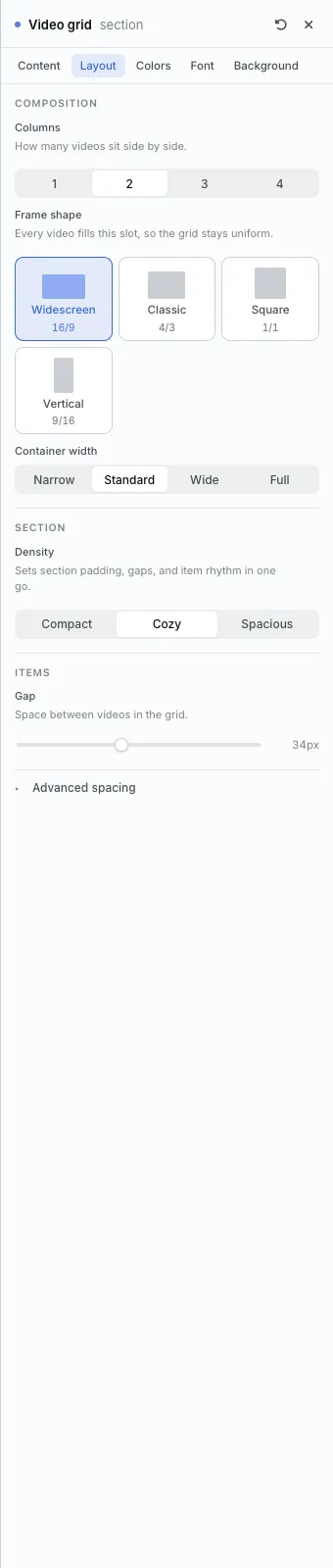
The settings every section shares are explained in Section Colors, Fonts and Backgrounds. Most sections also have Container width, Density and Advanced spacing.
Video grid also has the Colors, Font and Background tabs.
Tips
- While you edit, each video shows its poster picture instead of playing, so arranging stays quick.
All Section Builder sections · Questions? Email support@indiemade.com.