Using a Different Display for One Category
Your store-wide category display gives the catalog a consistent look, but it does not have to be the best choice for every collection. The Advanced tab lets you choose a different display for one category while the rest of the store keeps its normal setting.
When to use a category-specific display
- A category's products or subcategories need a presentation that works better than the store-wide display.
- A seasonal collection, sale, gift guide, or other promotion should feel like a distinctive landing page.
- One important collection needs its own heading, supporting message, background, or card treatment.
This is an advanced override for one category. It does not change the display used by the rest of your categories.
Choose a display for one category
Go to the category page you want to change on your own site, for example yourshop.com/catalog/christmas. Click the Settings gear at the bottom of the screen, then open the Advanced tab.
The Advanced tab only appears when you are standing on a category page, because everything in it belongs to that one category.
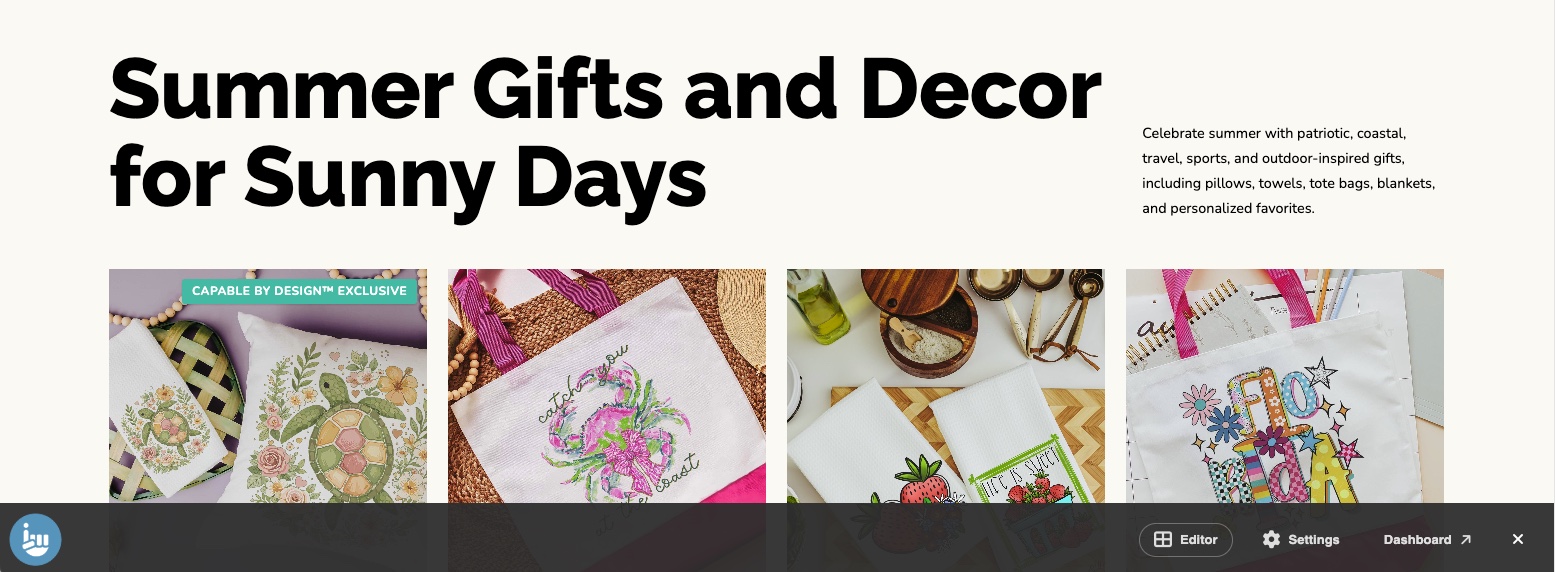
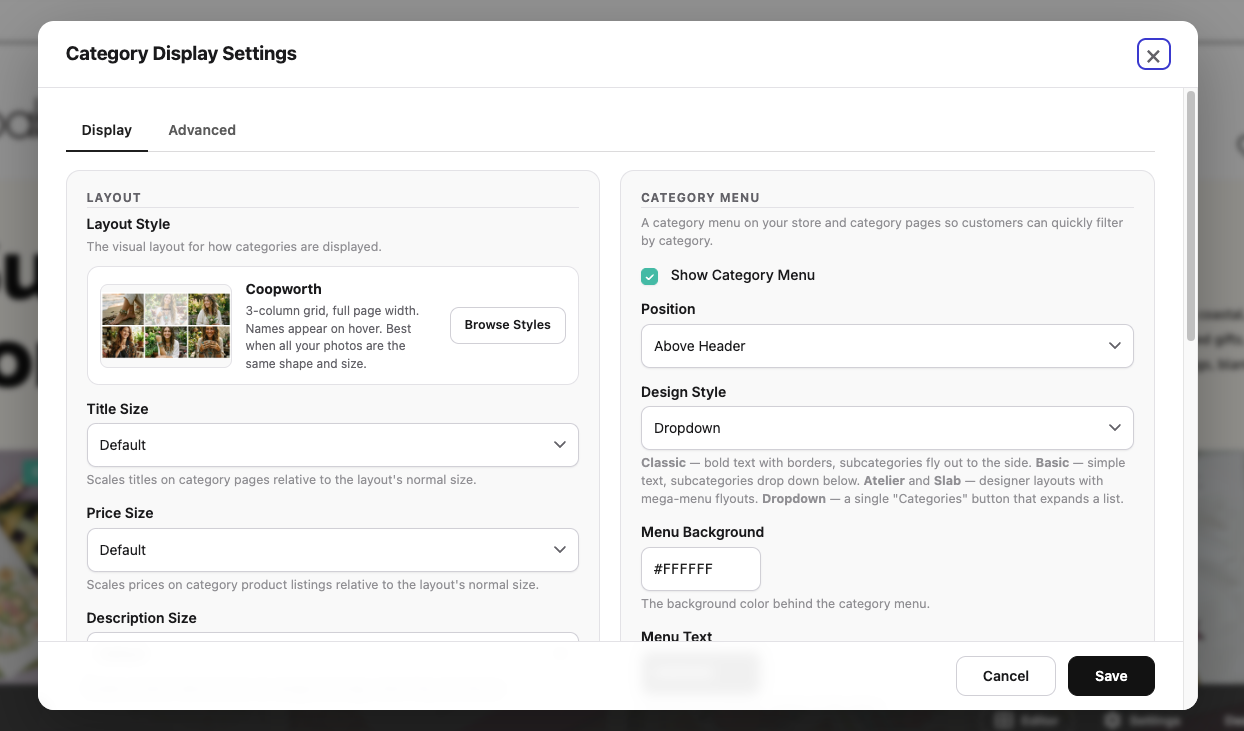
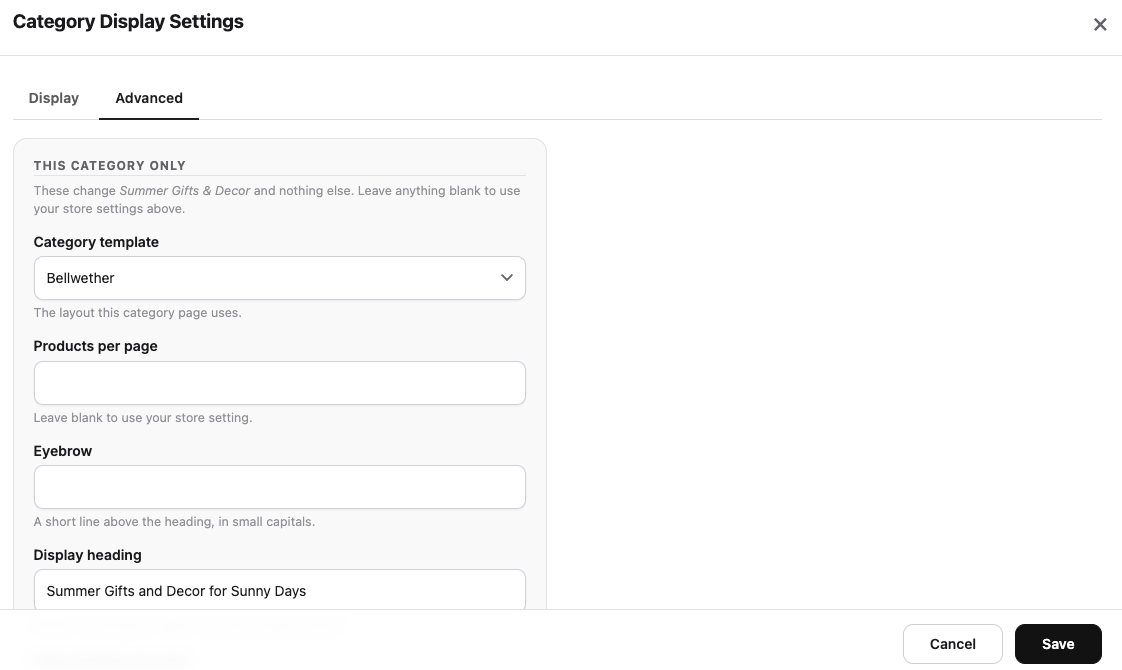
Choose the category's display
The first setting is Category template. Leave it on Use my store default and nothing changes. Choose Bellwether and this category gets the newer layout: larger images, roomier cards, and a heading area of its own.
You do not choose between a product layout and a category layout. Bellwether works out which one this page needs:
| A category with products in it | Shows those products as cards. |
| A category with sub-categories | Shows the sub-categories as large clickable image cards. |
| A category with both | Shows the sub-category cards first, then its own products underneath. |
Sorting, paging, and all your product and category links keep working exactly as before.
Give the page its own words
| Eyebrow | A short line in small capitals above the heading, like Made just for them. |
| Display heading | The big heading. This is for shoppers, so it can be a sentence rather than the category name. Leave it blank to use the category name. |
| Page background color | The colour behind this collection. Leave blank to use your shop's background. |
| Products per page | How many products this category shows before paging. This only changes this category, never your store-wide setting. |
How this category looks as a card
When a category sits inside another one, it appears on the parent page as a card. The remaining settings control that card:
| Card title | What to call it on the card. Often friendlier than the category name — a category called Gift Collections might read Gifts for Mom & Grandma on its card. Blank uses the category name. |
| Card eyebrow | A short line above the card title. |
| Card blurb | One sentence under the card title. Blank uses the start of the category description. |
| Card accent color | An accent for this card. Blank uses your shop's main colour, so a row of cards still looks deliberate. |
Tip: these four only show up somewhere else — on the parent page — so if you are looking at the category's own page and cannot see them, that is why.
Every box can be left empty
Blank always means "use my store setting". You can switch a category to Bellwether and fill in nothing at all: the heading falls back to the category name, the text under it to the category description, and the colours to your shop's own. Fill things in as you go.
Sub-categories follow the parent
Set a template on a category and its sub-categories use it too, so clicking a card does not land the shopper on a page that looks like a different shop. A sub-category can still choose its own template if you want it different.
The words do not carry down. An eyebrow or a heading belongs to one collection and would read oddly on its children, so each category keeps its own.
Adding your own sections
You can now place a Section Manager section on a category page — a row of reassurance messages, a newsletter sign-up, anything you have built. Edit the section, open Show on Pages, and either pick /catalog/* for every category or search for particular categories by name in Add Category Page(s).
See Sections & Layouts for how sections work.
Changing your mind
Set Category template back to Use my store default and the category returns to your store's normal look. Anything you typed is kept, so switching back later brings it with you.