Offering Express Shipping and Other Upgrades
A shipping upgrade gives a shopper a choice at checkout: your normal shipping, or something faster for more money. On IndieMade these choices are called shipping options. You name them yourself (Express, Priority, Overnight, Courier, Insured) and give each its own price in each place you ship to. Shipping options are included on every plan.
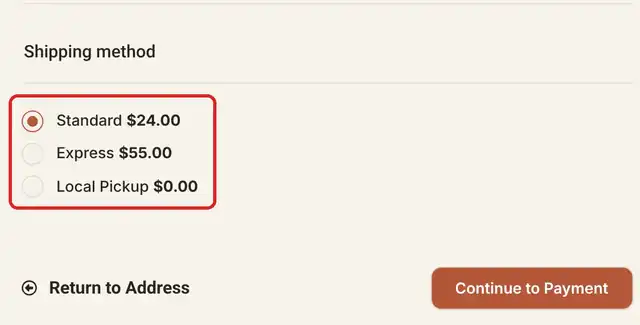
This page is for Simple Shipping, where you set your own prices. If you use USPS, Shippo or ShipStation, see Upgrades with live carrier rates below.
Step 1: name your options
- Go to Dashboard → Settings → Shipping. Save the page first if you changed anything.
- Under Destinations, click the orange Shipping options card. The Shipping Options page opens in a new tab.
- Under Your standard service, the Name is what shoppers see for your normal shipping. It says Standard until you change it, for example to Ground or Economy.
- Under Add a shipping option, type the Option name the way shoppers should see it, such as Express, and click Add option. Repeat for each upgrade.
- Under Your shipping options, click a name to change it, drag the handle to change the order shoppers see, or click the trash can to remove one.
- Click Save Configuration.
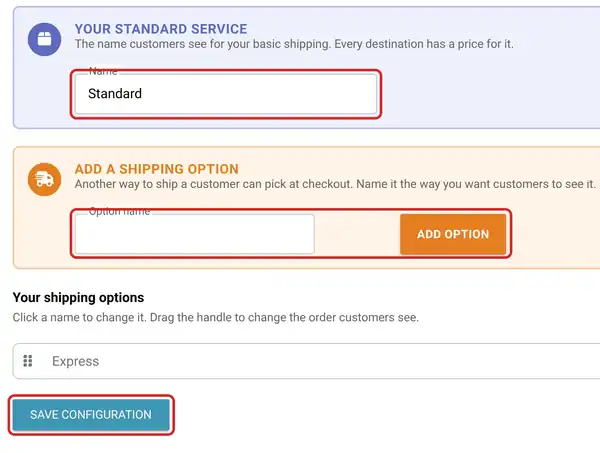
Each name has to be clearly different from the others. If a name is too close to your standard service or another option, for example a second option called Standard, the page says which one it collides with and asks for a different name.
Step 2: price each option
- Go back to the Shipping tab and reload it. The Destinations table now has a group of columns for each option: By itself, With another and Available.
- In every row, type the option's prices. By itself is the price for one item; With another is added for each extra item, exactly as for your standard service.
- Turn Available off in any row where you do not offer that option. Its price boxes dim. For example, offer Express in the United States and Canada but not to Everywhere Else.
- Click Save Configuration.
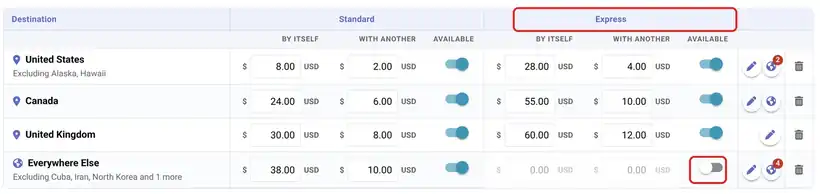
An option you have just added is not offered to anyone until you price it on the Shipping page and save. The same goes for an option you rename: its prices belong to the old name, so type them again after a rename.
What shoppers see
At the shipping step of checkout, shoppers get a list of every option you offer where they live, each with its price worked out for their whole cart. Your standard service is picked for them, so a shopper who wants nothing special just carries on. Options switched off for their destination do not appear.
The price follows the same rule as standard shipping: the option's By itself price, plus its With another price for each extra item. With Express at $28 by itself and $4 with another, three items cost $28 + $4 + $4 = $36 by Express.
Common set-ups
- Free standard, paid Express: price your standard service at 0.00 and Express at what it costs you. For free standard shipping only over a certain order total, use a promotion with Discount on Shipping; it lets you pick which shipping options the discount covers, so Express stays paid. See Offering free shipping.
- Local pickup as a choice: tick Allow Local Pickup under the destinations table. Local Pickup at $0.00 joins the list.
- Insured or signature delivery: an option does not have to be faster. Name it Insured and price it a little above standard.
- Express at home only: give Express a price in your home country's row and turn its Available switch off everywhere else.
Options or a second shipping profile?
A shipping option is a choice the shopper makes. If what you need is different prices for different products, such as small prints and large framed pieces, that is a second shipping profile, not an option. See Simple Shipping. With shipping per product, your option names are shared by every profile, and each profile has its own Express prices in its own destinations table.
Upgrades with live carrier rates
- USPS: tick more than one service under USPS Services, for example USPS Ground Advantage and USPS Priority Mail Express. Shoppers choose between them at checkout, each priced live by USPS. International services work the same way under USPS International Services. See Calculated Shipping with USPS.
- Shippo and ShipStation: choose which carrier services to offer in their settings. Shoppers see every service you allow, sorted by price. See Shippo Integration and ShipStation Integration.
Tips
- Say how fast each option is in the name, such as Express (2 to 3 days), so shoppers know what they are paying for.
- Only offer a speed you can keep. If you make to order, Express shipping does not shorten the making time; see Made to Order.
- After setting up, try checkout yourself with an address in each kind of destination and check the list of choices.
Related: Shipping to Some Countries and Not Others, Simple Shipping.
Questions? Email support@indiemade.com.