The Rich text Section
Longer writing in one comfortable reading column: headings, paragraphs, pull quotes, lists, dividers, photos and videos.
Best for: An About page, your story, a care guide or any article.

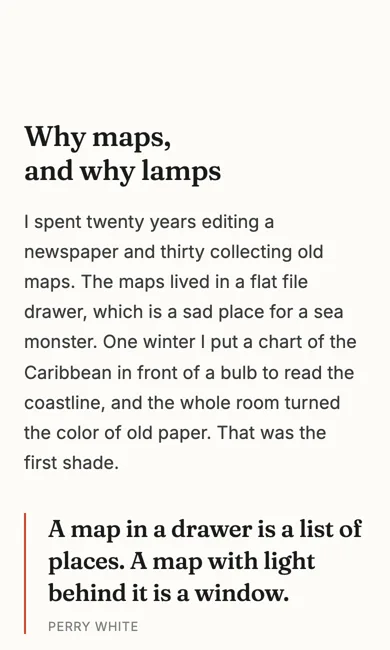
On a phone
Adding it
Turn on the Editor, click Add new section here, and choose Rich text under Section Builder. It starts with sample words and pictures; replace them with your own. Click Modify on the section's toolbar to open its drawer. The steps, with pictures, are in Building Pages with the Section Builder.
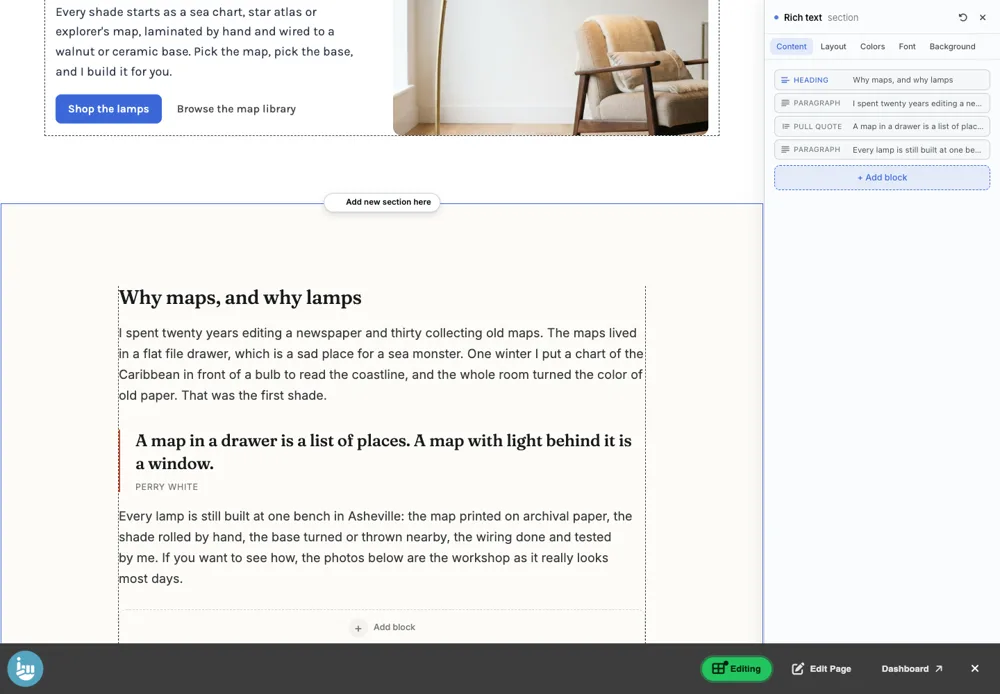
The Content tab
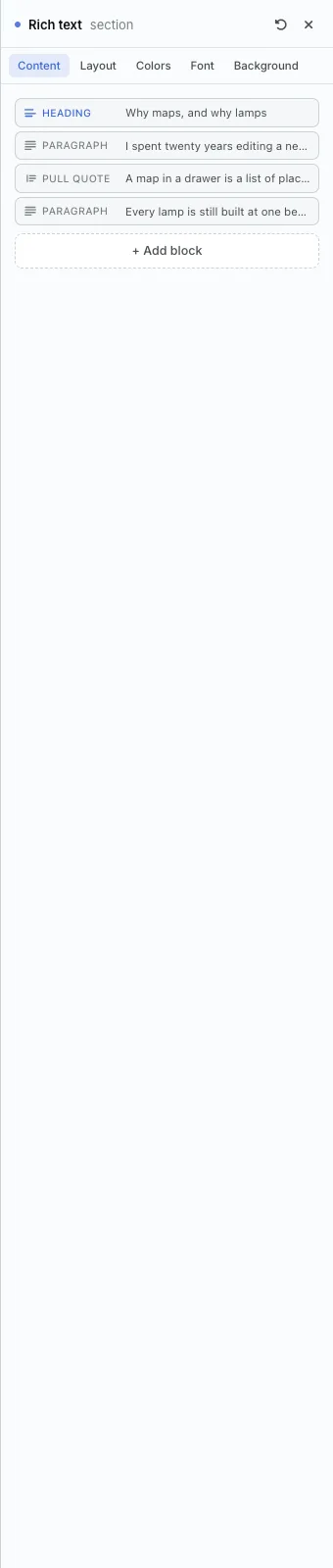
- The section is a stack of blocks, each labelled with its kind: Heading, Paragraph, Pull quote and so on. Click a block to edit it.
- + Add block adds a new one: eyebrow, title, byline, lede, paragraph, heading, pull quote, list, divider, image or video.
The Layout tab
- Text width: Standard or Wide. An article is one column by nature; this is how wide it runs.
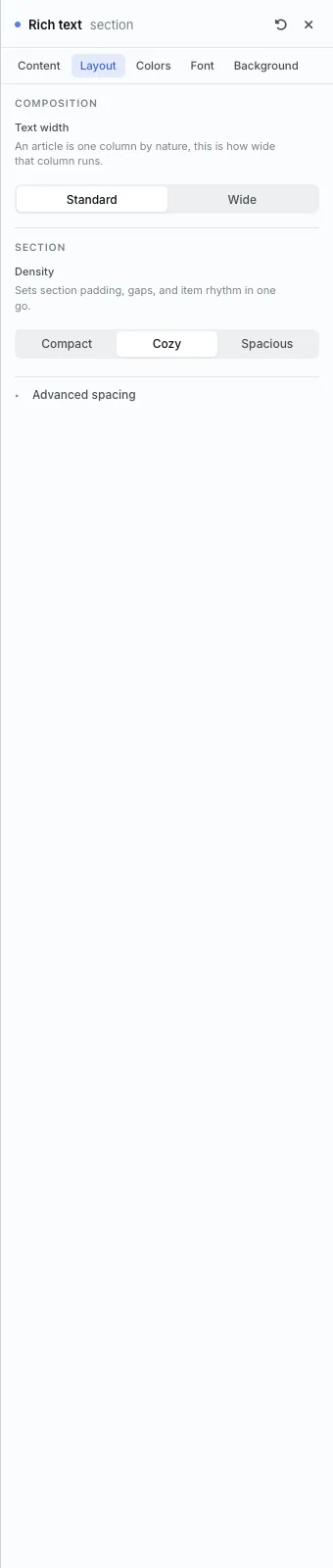
The settings every section shares are explained in Section Colors, Fonts and Backgrounds. Most sections also have Container width, Density and Advanced spacing.
Rich text also has the Colors, Font and Background tabs.
Tips
- A lede paragraph can open with a large first letter.
- Break long writing up with a pull quote or a photo every few paragraphs.
All Section Builder sections · Questions? Email support@indiemade.com.