The Hero Section
A big opening for the top of a page: a small eyebrow line, a large headline, a paragraph, up to two buttons and a photo.
Best for: The top of your homepage or a landing page. Use one Hero per page.

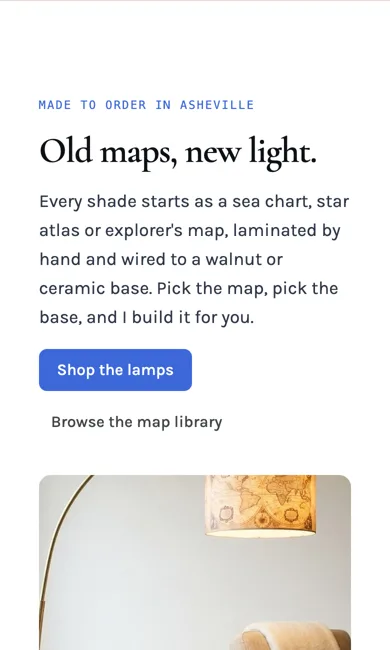
On a phone
Adding it
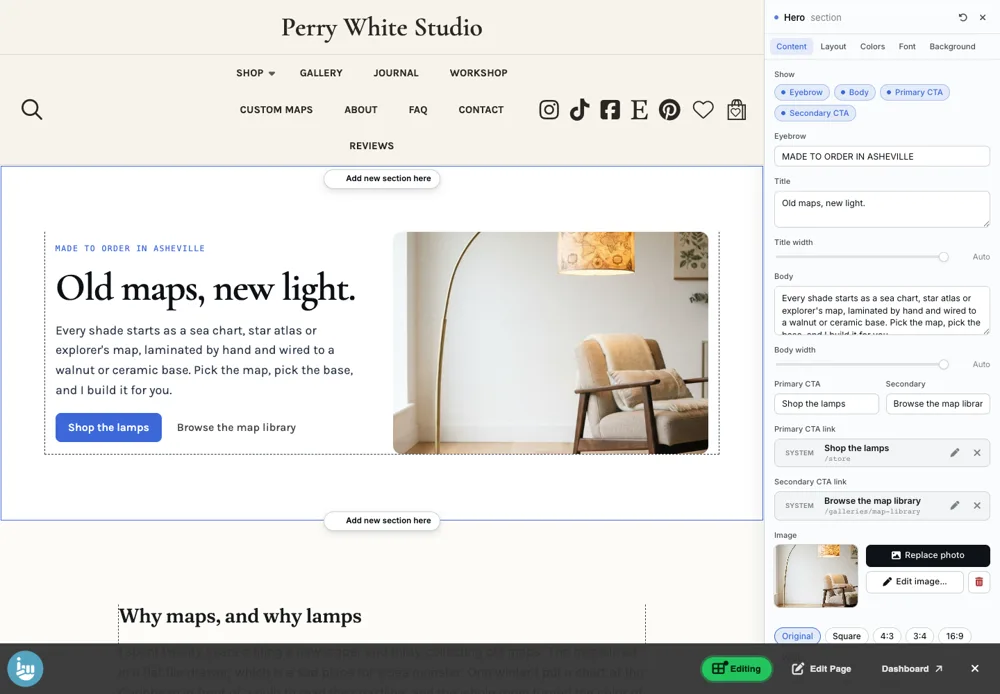
Turn on the Editor, click Add new section here, and choose Hero under Section Builder. It starts with sample words and pictures; replace them with your own. Click Modify on the section's toolbar to open its drawer. The steps, with pictures, are in Building Pages with the Section Builder.
The Content tab
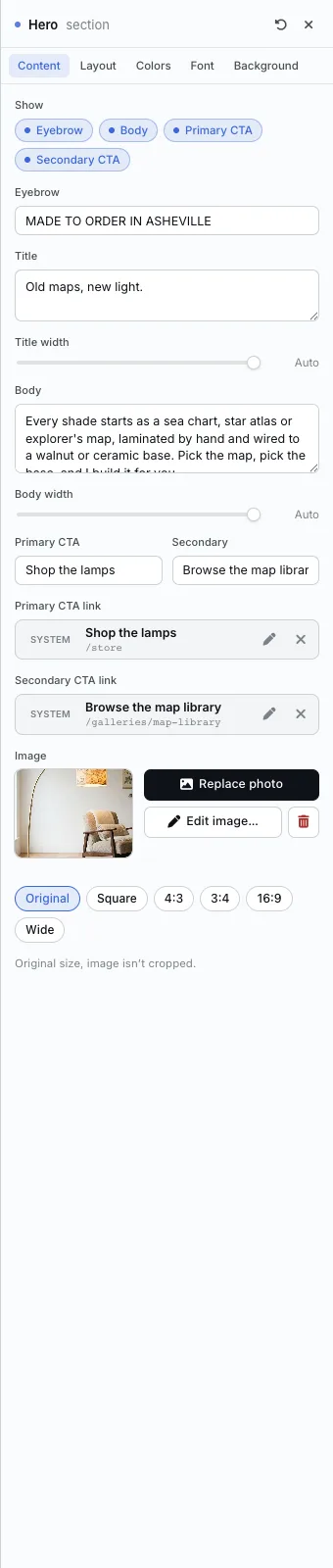
- Show: turn the Eyebrow, Body, Primary CTA and Secondary CTA on or off. Turn off what you do not need and it disappears from the page.
- Eyebrow, Title and Body: type them here or straight onto the page. Title width and Body width set how wide each line runs, or leave them on Auto.
- Primary CTA and Secondary: the two buttons. Click Primary CTA link to point a button at a product, category, page, gallery, blog post or any web address.
- Image: Replace photo picks a new one, Edit image sets the focal point. Choose a shape: Original, Square, 4:3, 3:4, 16:9 or Wide. Original shows the whole photo uncropped.
The Layout tab
- Variant: Image right, Image left, Centered or Stacked.
- Image gap: the space between the words and the photo.
- Stack rhythm: the space between the eyebrow, title, body and buttons.
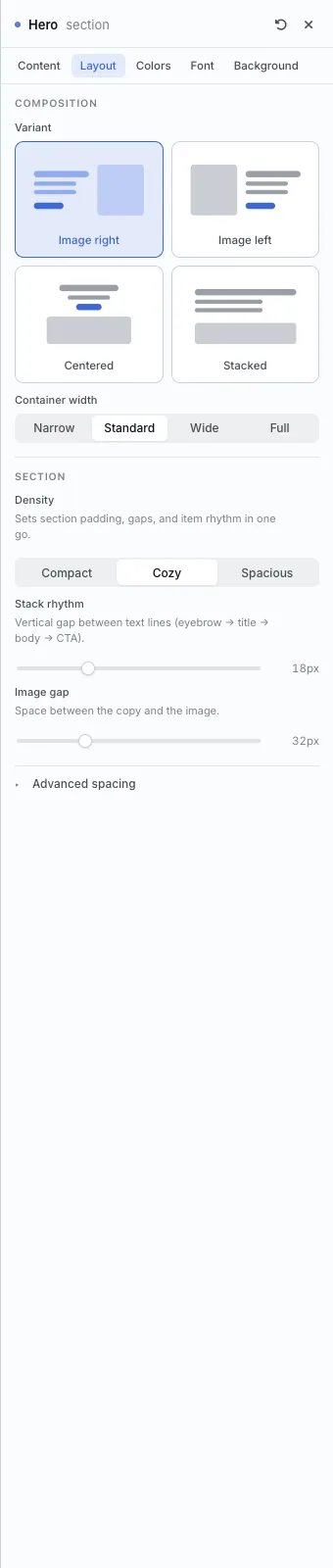
The settings every section shares are explained in Section Colors, Fonts and Backgrounds. Most sections also have Container width, Density and Advanced spacing.
Hero also has the Colors, Font and Background tabs.
Tips
- Keep the headline short. Two to six words reads best at this size.
- Image right is the classic layout. Stacked suits a wide landscape photo.
All Section Builder sections · Questions? Email support@indiemade.com.