The Hero Banner Section
One big picture and nothing else. No words, no buttons: the photo does the talking.
Best for: A strong opening photo, or a pause between sections of words.

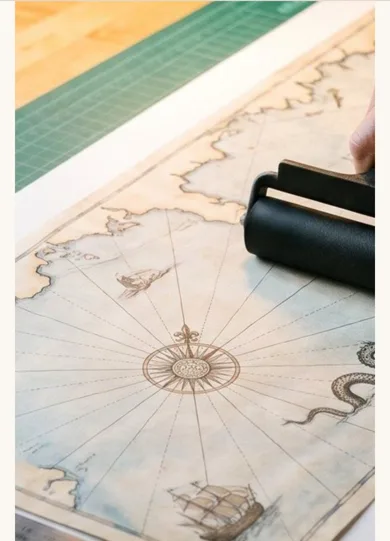
On a phone
Adding it
Turn on the Editor, click Add new section here, and choose Hero Banner under Section Builder. It starts with sample words and pictures; replace them with your own. Click Modify on the section's toolbar to open its drawer. The steps, with pictures, are in Building Pages with the Section Builder.
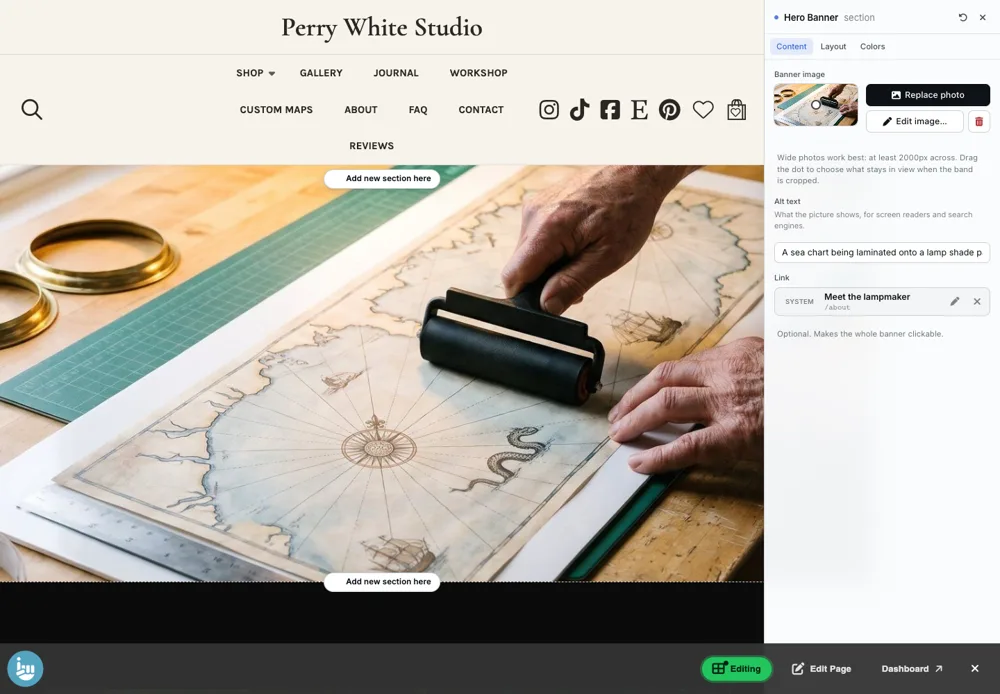
The Content tab
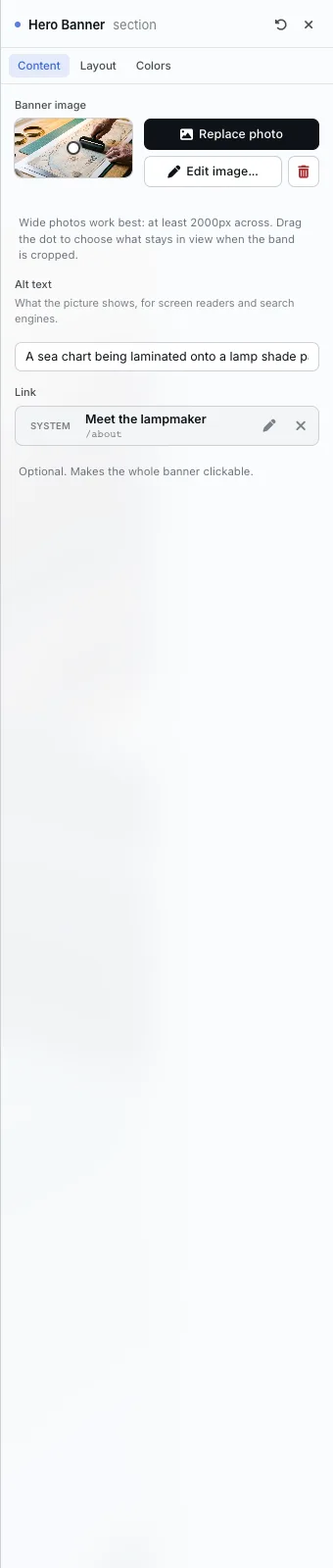
- Banner image: Replace photo and Edit image. Wide photos work best, at least 2000 pixels across. Drag the dot to choose what stays in view when the band is cropped.
- Alt text: what the picture shows, for screen readers and search engines.
- Link: optional. Makes the whole banner clickable.
The Layout tab
- Height: how much of the window the photo takes before the page continues: Short, Medium, Tall or Screen.
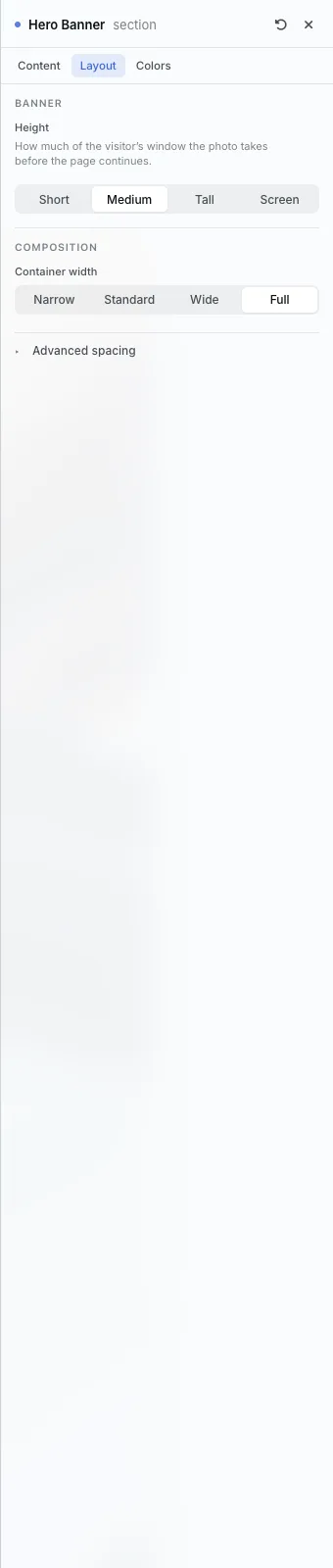
The settings every section shares are explained in Section Colors, Fonts and Backgrounds. Most sections also have Container width, Density and Advanced spacing.
Hero Banner has Content, Layout and Colors tabs. It has no words, so there is no Font tab.
Tips
- Set the focal point on the subject. On a phone the band is narrower and crops more.
All Section Builder sections · Questions? Email support@indiemade.com.