Advanced Settings: Add to Head, Turning Off Commerce or the Blog
The Advanced settings page holds a few switches most shops never need: a place to paste code from another service into your site, and switches to turn off selling, the blog, or new Dashboard Managers. They are included on every plan.
Open it from the IndieMade Settings menu at the top right of your Dashboard: Settings → Advanced.
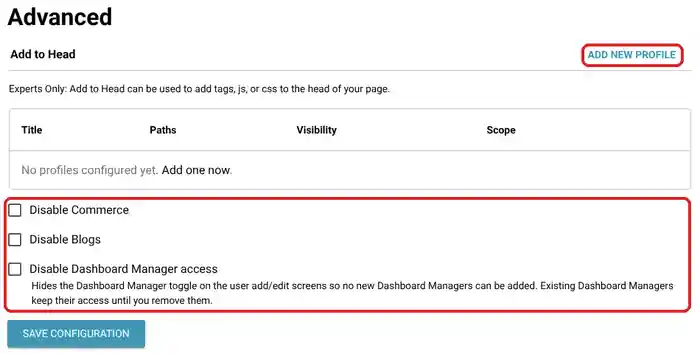
Add to Head
Some services ask you to "paste this code into the head of your website": a site verification tag, a chat widget, an ad tracking pixel. Add to Head is where that code goes. It is marked Experts Only for a reason: code pasted here runs on your pages, and a broken snippet can break them. Only paste code from a service you trust.
Before you reach for it, check whether IndieMade already has a setting for what you need. Google Analytics, Google Search Console, the Meta Pixel, the Pinterest Tag and Mailchimp all have their own settings and need no code. See Google Analytics, SEO on IndieMade, Meta Pixel Integration, the Pinterest Tag and Mailchimp Integration.
Adding a snippet
- Click Add New Profile.
- Give it a Name you will recognise later, such as Chat widget.
- Paste the code into Code. CSS must be inside
<style>tags and JavaScript inside<script>tags. - Under Embed code on specific pages, choose Show on every page except the listed pages or Show on only the listed pages, and type the pages in Paths, one per line. /blog is your blog page, /blog/* is every post, and <front> is your homepage. Leave Paths empty with the first choice to use the code on every page.
- Choose the Scope of addition: Head (early, before any CSS and JavaScript), Styles (with the CSS files) or Scripts (with the JavaScript). If the service does not say, use Head.
- Save. Your snippets are listed on the Advanced page with their paths and scope, so you can edit or remove one later.
To change how your site looks with CSS, Custom CSS Styles is the easier place.
Disable Commerce
Tick Disable Commerce and click Save Configuration to turn off selling. Use it for a portfolio site that shows your work with nothing for sale. Untick it to sell again.
Disable Blogs
Tick Disable Blogs and save to turn off your blog. Its link disappears from your main menu. Your posts are kept, so unticking it brings them back. See Adding a Blog.
Disable Dashboard Manager access
A Dashboard Manager is someone you let into your Dashboard to help run the shop. Tick Disable Dashboard Manager access and save to hide the Dashboard Manager switch on the user screens, so nobody can be made a Dashboard Manager. People who already are keep their access until you remove it on the Users page.
Questions? Email support@indiemade.com.