The Blog Section
Your blog posts, live: the latest ones or the ones you pick. New posts appear by themselves.
Best for: Showing your latest news, guides or stories on the homepage.

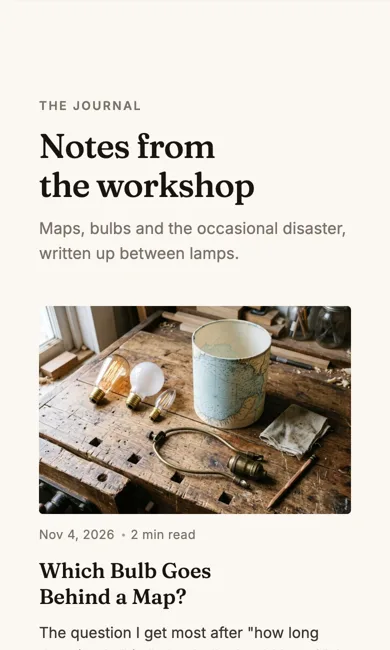
See it in action: the Blog section on our demo shop's homepage. Our demo shop, perrywhite.indiemade.com, is built entirely with the Section Builder, so you can try it on a computer and a phone.
On a phone
Adding it
Turn on the Editor, click Add new section here, and choose Blog under Section Builder. It starts with sample words and pictures; replace them with your own. Click Modify on the section's toolbar to open its drawer. The steps, with pictures, are in Building Pages with the Section Builder.
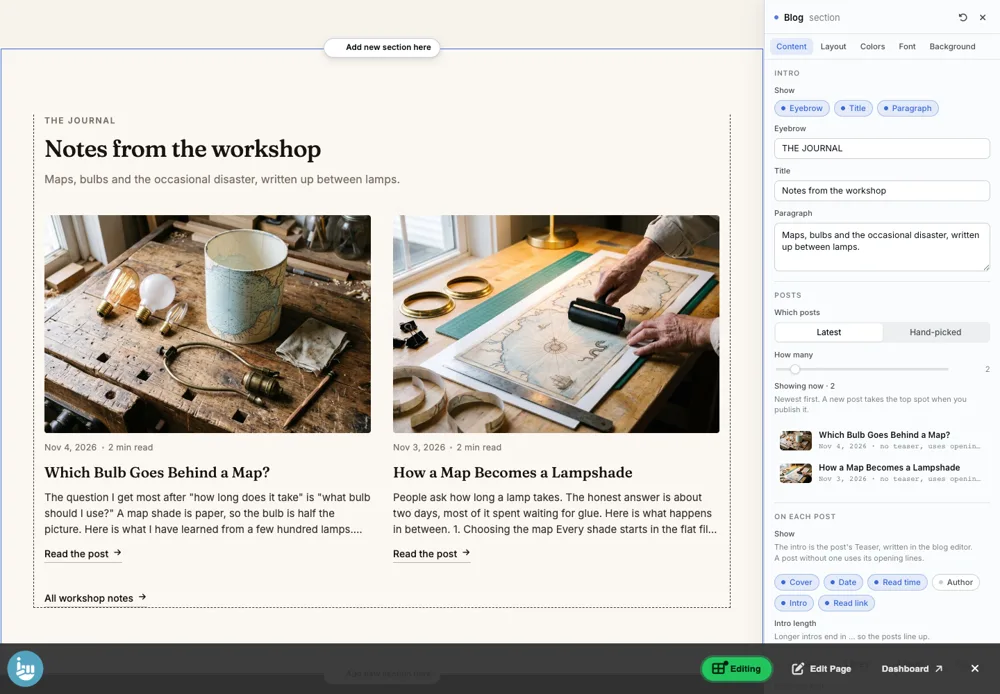
The Content tab
- Intro: an optional Eyebrow, Title and Paragraph above the posts.
- Which posts: Latest or Hand-picked, and How many.
- On each post: Cover, Date, Read time, Author, Intro and Read link. The intro is the post's Teaser from the blog editor; a post without one uses its opening lines.
- Intro length: 2, 3 or 4 lines, or Full. Read link text.
- Link to the blog: show a link to all posts, with your own text.
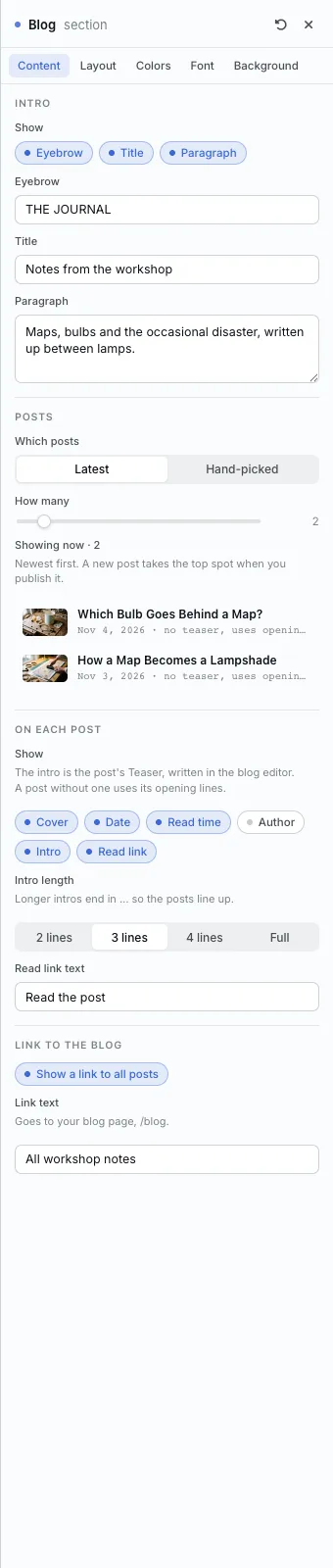
The Layout tab
- Layout: Cards, List, Featured or Text only.
- Columns (phones show one) and Cover shape: 3:2, 4:3, Square or Wide.
- Intro alignment: Left or Centre.
- Post rhythm and Gap.
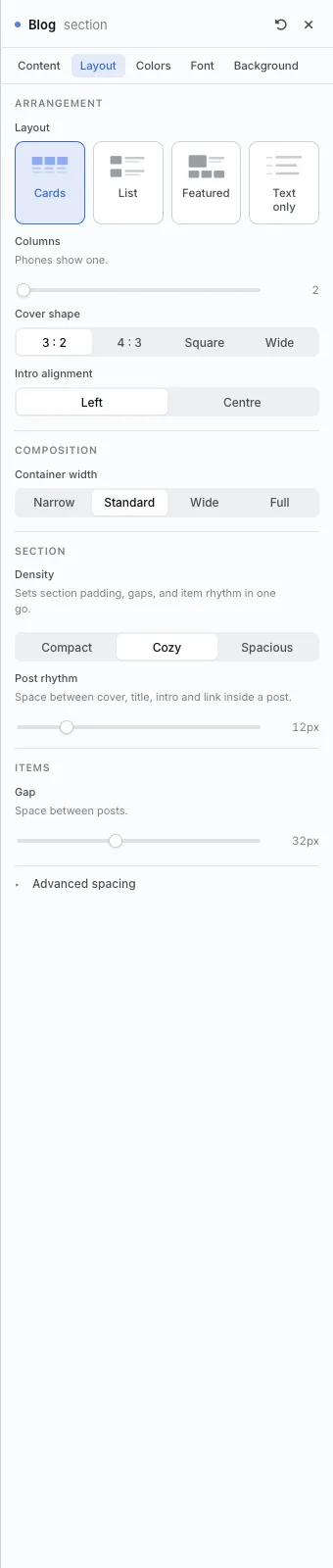
The settings every section shares are explained in Section Colors, Fonts and Backgrounds. Most sections also have Container width, Density and Advanced spacing.
Blog also has the Colors, Font and Background tabs.
Tips
- Write a Teaser for each post so the intros read well.
All Section Builder sections · Questions? Email support@indiemade.com.