How to Add a Product on IndieMade
A product needs only three things to go on sale: a title, a photo and a price. Everything else on the product form is there when you need it. Adding products is included on every plan. The current plans have no limit on how many; the older Basic, Standard and Pro plans each have a product limit, shown under Plan and Billing.
Setting up your shop for the first time? Do payments and shipping first; see Fast Start.
Adding a product
- Go to Dashboard → Products and click Add Product.
- Type the Title: the name shoppers see, such as Blue Stoneware Mug, 12 oz.
- Write the Description: what it is, what it is made of, its size, how to care for it.
- Under Pricing and Inventory, enter the Price. SKU is optional and only for you.
- Scroll down to Image, click Upload Images and choose your photos. You can pick several at once. The first photo is the one shoppers see in your store; drag photos to change the order.
- Click Save at the bottom. With Published ticked (it is, unless you untick it), the product is in your shop straight away.

The rest of the form, top to bottom
Use what fits the product and skip the rest.
- Categories: where the product sits in your shop, such as Mugs. Pick one or more. See Managing Product Categories.
- Tags: words that help you find products in your Dashboard. Shoppers never see them.
- Product Variations: sizes, colors and other choices, each with its own price and stock. Save the product first; the box then lets you add them. See Product Variations and Options.
- Track Stock and Quantity: tick Track Stock and enter how many you have. Each sale counts down, and at zero the product shows as sold out. See How to set product inventory.
- Options: things a shopper chooses or types without changing your stock, like a monogram, gift wrap or a photo upload. Add from template reuses one you made before; + New option makes one. See Personalization.
- Flag: a badge such as New on the product photo. See Product Flags.
- Made to Order (when that add-on is installed): how many days you need to make it, so shoppers see a ships-by date. See Made to Order.
- Videos (when the Product Videos add-on is installed): up to two short videos in the photo gallery. See Adding Videos to Your Products.
- Digital Downloads: click Upload Digital File to sell a pattern, print file or e-book. Tick Digital Only: This product does not ship to the buyer if there is nothing to post. See Selling Digital Downloads.
- Package Weight and Dimensions: the weight (Pounds, Ounces) and size (Length, Width, Height) of the box or mailer you post it in, not the item itself. Needed if your shipping is worked out by USPS, Shippo or ShipStation; optional otherwise.
- How to quote multiple items: how postage grows when someone buys more than one. See How to Quote Multiple Items.
- Search engine optimization (SEO): what Google shows, and the product's web address. Filled in for you if you leave it. See SEO on IndieMade.
- Private listing (when that add-on is installed): hide the product from your shop and share it by link instead. See Private Listings.
- Published: untick to keep the product hidden while you work on it.
Managing your products
Everything else happens on Dashboard → Products.
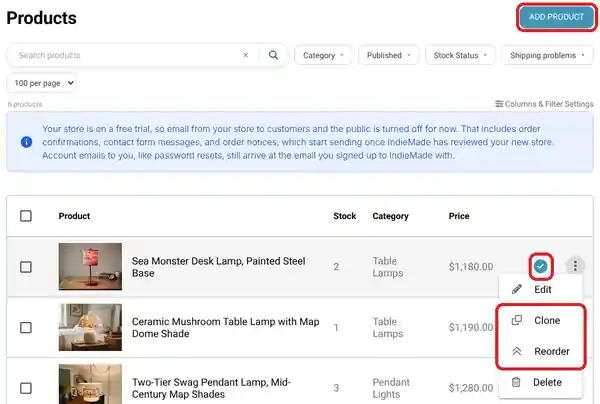
- Hide or show a product: click the check mark at the end of its row. Blue means published; grey means hidden. A hidden product keeps its photos and everything else. See Publishing and Unpublishing a Product.
- Clone a product: the quickest way to add a similar one. Click the three dots on the row and choose Clone. You get a copy with the same photos, price and choices; change what differs and click Save.
- Change the order products appear in: click the three dots and choose Reorder to move one product to a new spot. To move several at once, tick them, open More Bulk Actions and choose Reorder Products.
- Find a product: type in Search products, or narrow the list with Category, Published and Stock Status.
- Change many at once: tick them and use the buttons that appear at the top, such as a price change for a whole category. See Bulk Editing Products.
- Add lots of products at once: see Importing Products with a CSV File.
Tips
- Use the words a shopper would search for in your title. Blue Stoneware Mug beats Ocean Dream.
- Make every product's first photo the same shape so your store lines up. See How Your Photos Are Resized and Cropped.
- Have a few of the same thing in different colors? Make one product with a color variation rather than a product for each color.
Questions? Email support@indiemade.com.